Your account
This page is for church staff and translators who need to change their own account details. Update your name or photo, change a password you use, sign out, or delete the account.
For your plan, credit, and receipts, use Plan and billing.
Open your church account
- Press your name or photo at the bottom of the sidebar. The account menu opens. On a phone or small tablet, press the menu button at the top instead.
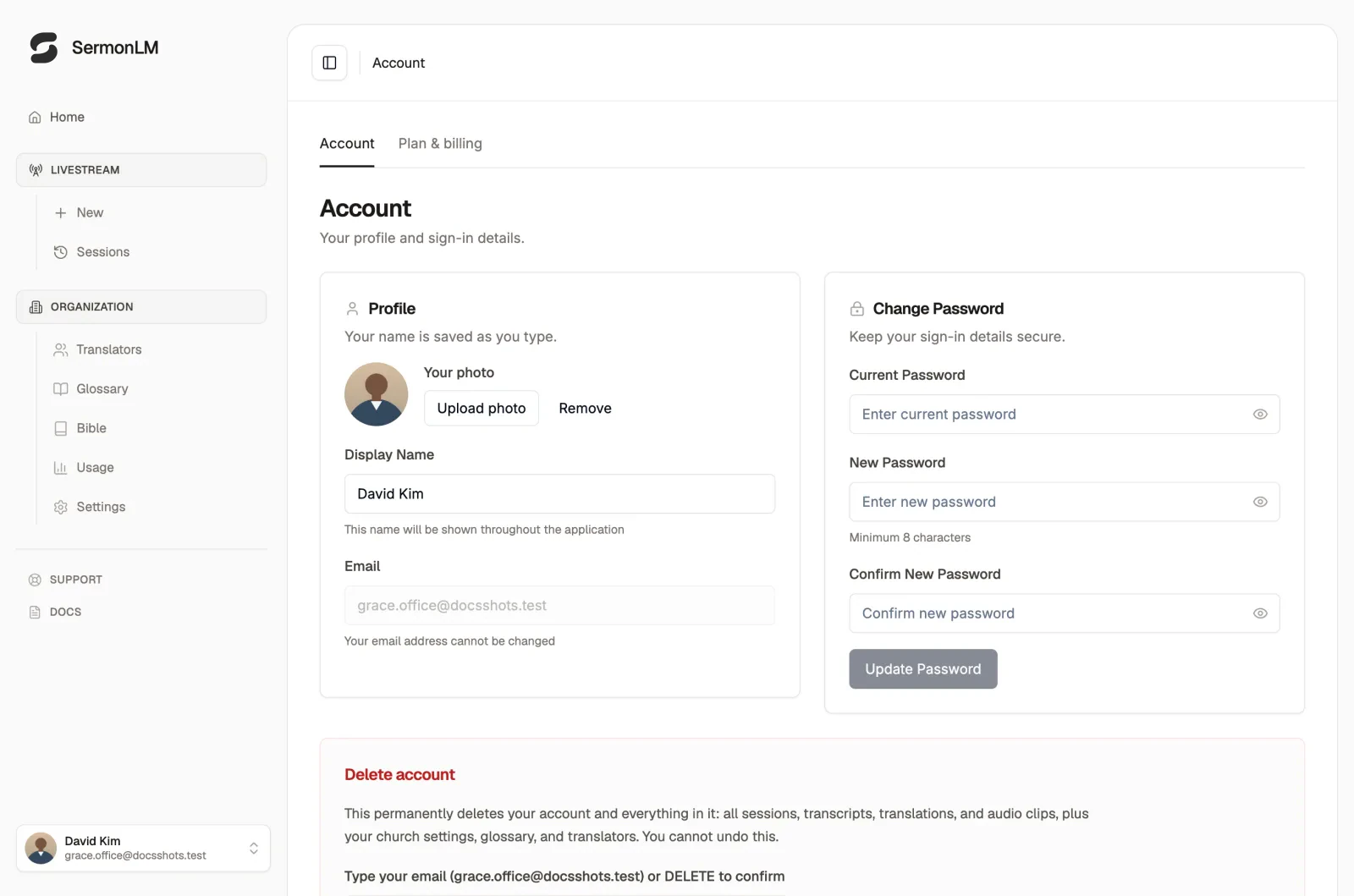
- Press Account settings. The Account page opens.
If it does not work: check that you are signed in to the right account. For a translator account, use the Account settings window described below.
Change your name
- Enter your name in Display Name under Profile.
- Wait for a new Saved message before leaving the page.
The name saves as you type. Email shows your sign-in address. You cannot change it in this form.
If it does not work: keep the page open while Saving... is shown. Read any error and check your connection before changing the field again.
Add or remove your photo
- Press Upload photo beside Your photo. A file picker opens.
- Choose a JPEG, PNG, GIF, or WebP image up to 5 MB.
- Wait for your photo to appear beside Your photo.
Use Upload photo again to replace it. Remove appears when your account has a photo. Press it to remove the photo.
This is your own account photo. Set the church logo with Upload Logo or Change Logo in Settings under Organization. See Set up your church.
If it does not work: check the file type and size, then read the error. A church logo can use SVG; your account photo must use one of the four image types above.
Change your password
Use these steps if you already sign in with a SermonLM password.
- Enter Current Password under Change Password.
- Enter New Password. Use at least 8 characters.
- Enter the same new password in Confirm New Password.
- Press Update Password. A Success message says Password updated successfully and the fields clear.
If it does not work: fill all three fields and check that the new passwords match. The current password must be your SermonLM password. If you use Google to sign in, continue to use Continue with Google.
Sign out
- Press your name or photo at the bottom of the sidebar. The account menu opens.
- Press Sign out.
On a phone or small tablet, press the menu button at the top, then Sign out. If a page with one Sign out button opens, press it.
If it does not work: A sermon is live in this browser means you must end the sermon in the studio first. Check your connection and read any sign-out error before trying again.
Delete your church account
- Open Account settings. Find Delete account at the bottom of the Account page.
- Type your email or
DELETEin the box. - Press Delete my account. You are signed out.
This deletes the account and everything in it: all sessions, transcripts, translations, and audio clips, plus your church settings, glossary, and translators. A monthly plan ends at once, and its unused time is not refunded. To get back unused credit you paid for, message Support before you delete the account. You cannot undo this. Download the text you need first; see After the sermon.
If it does not work: check that the text you typed is your sign-in email or DELETE in capital letters. For a question about a bill, message Support before you delete the account.
Translator Account settings
- Press your account photo or initials at the top right of a translator page. The account menu opens.
- Press Account settings. The Account settings window opens.
- Change Name if needed.
- Wait for a new Saved message after a name change.
- Use Upload photo or Remove under Your photo to change your photo.
- Press Change beside Password if you have a password. The three password fields open. If you forgot it, press Email me a link after Forgot your password?.
- If you sign in with an email link, press Set a password beside Password, then Email me a link. Open the email, press Reset Password within 1 hour, and set a password of at least 8 characters. You are signed out on every device; sign in again with the new password.
The same photo and password rules apply here. Email is read-only. A Google-only account has no Password row. Listeners see the translator name your church added, which can differ from your account Name.
The translator's account menu also has Text size, Dark mode, and Sign out. Text size and dark mode are kept on that device.
To delete a translator account, press Delete account at the bottom of the window, type your email or DELETE, then press Delete my account. You cannot undo this.
If it does not work: a translator who uses Google has no Password row. Keep using Continue with Google. If the email does not come, check spam, then press Send again. Use Translator problems for sign-in or church-list problems.