During the sermon
This page is for the church volunteer running the live studio. Turn on the speaker's sound, check the words, and help translators while the sermon runs.
Keep the studio tab open. Connect the computer, tablet, or phone to power and keep it awake.
Start the speaker's sound
- In Live mode, the browser may ask to use the microphone when the studio opens, or when you press Start recording. Allow access.
- Open the arrow beside the microphone button if it appears. Select Microphone opens.
- If the menu is open, choose the speaker's microphone or sound desk input.
- Press the microphone button, Start recording. When the sound connection is ready, the status becomes Listening.
- Speak a short test sentence into the selected input. The words appear in Transcript.
- Open a translation language tab. The translated words appear beside the original words.
The arrow appears only in Live mode, when the browser lists more than one input. You can also use it while recording: the sermon continues on the new input, and a pause stays paused. If the new input cannot open, the old one continues and a message tells you.
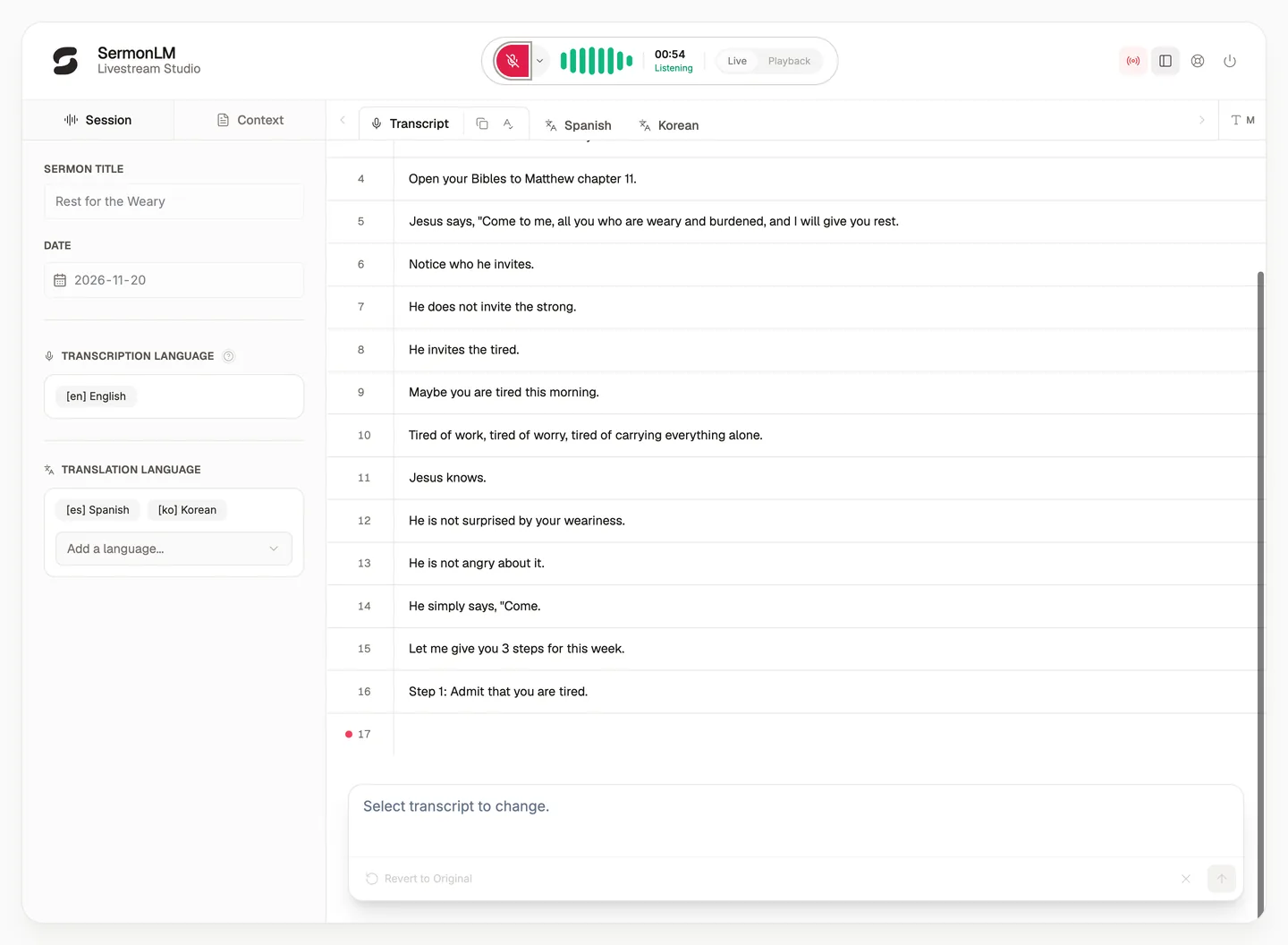
If you reload the studio page while the microphone is recording, the studio starts the microphone again in a few seconds. Check that the status becomes Listening. If it does not, press the microphone button. A paused microphone stays off after a reload, and a new tab does not start the microphone.
To pause, press the microphone button while it records. Pause the sermon? opens: press Pause. The status becomes Paused, live words and AI voice stop, and the clock stops. Open translator rooms keep going. Press the microphone button again to continue.
Ask a helper to check the guest page with headphones. Moving text proves that words are arriving. It does not prove that the phone can play sound.
If it does not work: check that the sound desk is sending the speaker's microphone to the computer. Check the browser's microphone permission and the selected input. See Tips and fixes.
Check the guest link and connection
- Move the pointer over the red broadcast icon at the top right, or tap it. The broadcast panel opens.
- Read the connection status and listener count. The panel also shows your service hours or credit left.
- Copy This sermon only if you need a link for just this session. Lobby is the church's reusable link, and the QR code above it is the same code every week.
- On pay as you go, watch for Credit is running low and Credit is used. The sermon keeps going. Add credit in Plan and billing before the next one.
The clock beside the microphone counts only while the microphone is on. It stops during a pause. At 2 hours of this time, the studio asks Still going? and the sermon keeps going while it asks. Keep going adds 1 more hour, and the studio asks again each hour. End now ends and saves the sermon. If nobody answers in 5 minutes, the sermon ends and is saved, so a microphone left on stops by itself. A session stops at 6 hours. On a phone, the clock and the state (Live, Paused, or Mic off) show at the top of the screen.
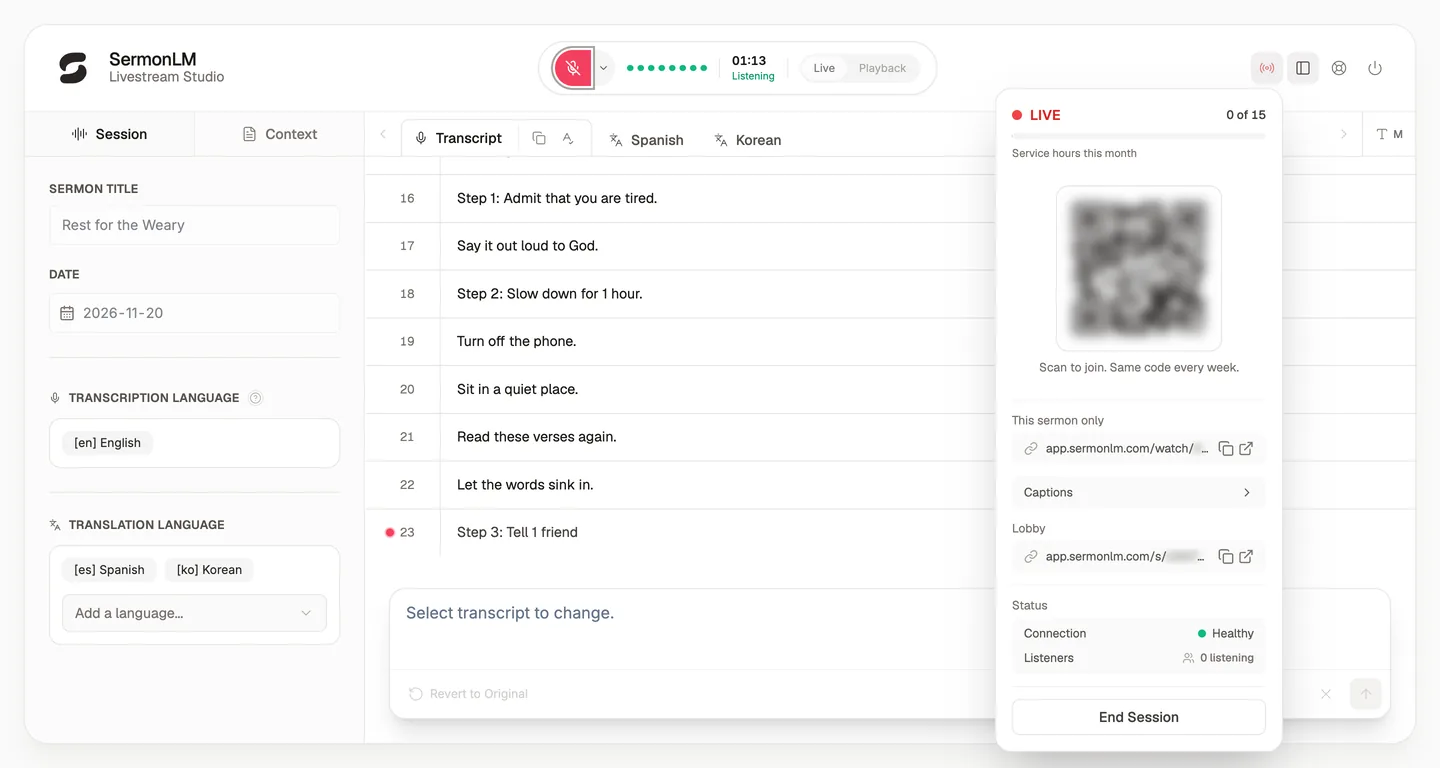
Use Share your link if you need to download a QR code.
Use Captions on your livestream video to put the sermon words over your stream video.
If it does not work: open the link on a guest device. Check that it shows the correct sermon. A listener count alone does not confirm that guests hear sound.
Check each translation
- Open a language tab, such as Spanish. The original words and translation appear together.
- Check the delivery choice at the bottom. AI Voice provides computer speech; Text Only provides text.
- For AI Voice, the bar also shows the voice and the speed. Leave the speed on Auto: SermonLM speeds the voice up a little when it falls behind.
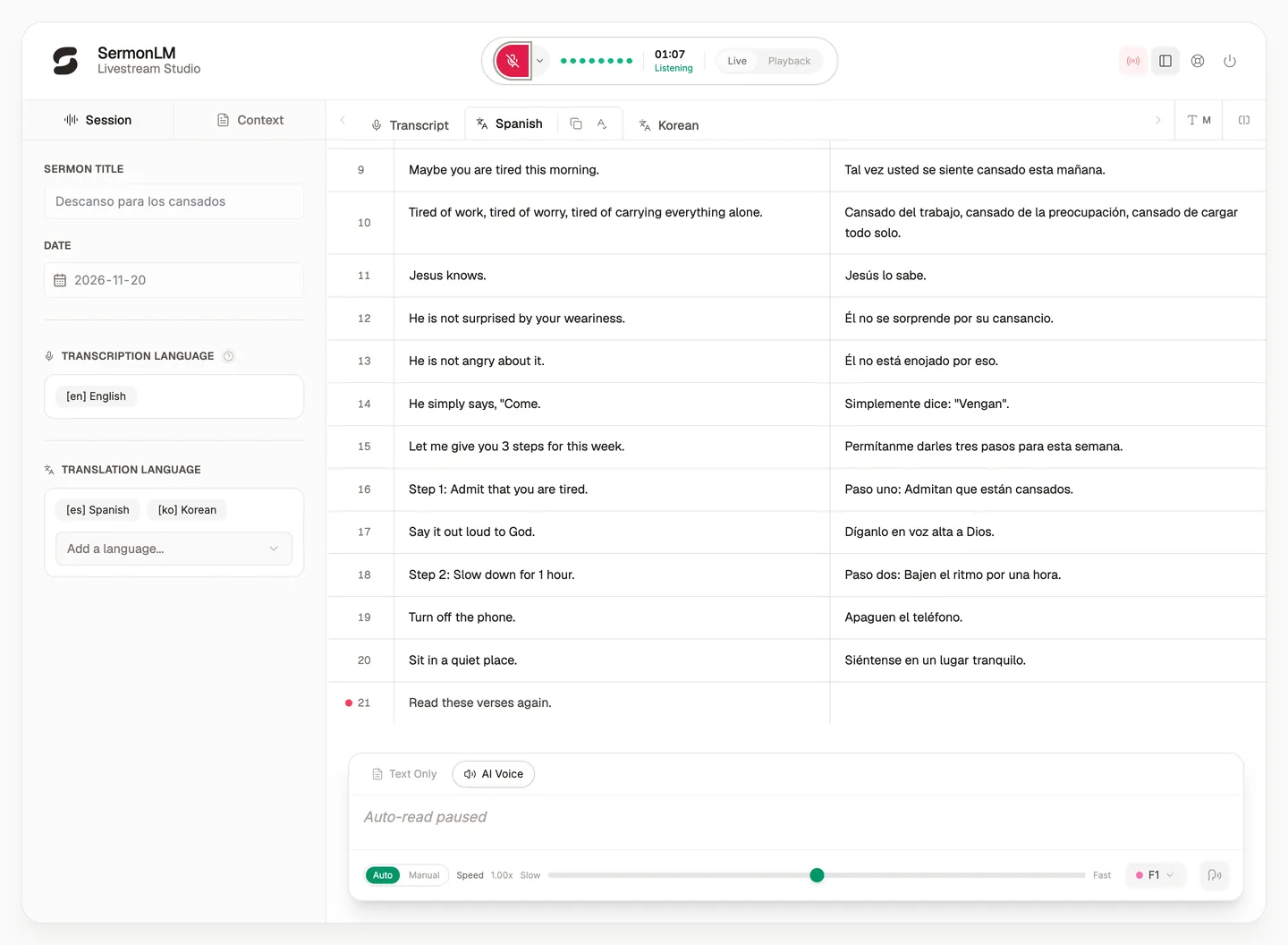
The translation languages come from sermon setup. To add one during the sermon, open Session, then Add a language... under Translation Language. On a tablet or phone, first tap the sermon title at the top to open the left panel. Guests can choose it on their phones at once. It starts as text; select AI Voice in its tab for a voice. Your plan sets how many languages a sermon can have. A language stays until the sermon ends.
A translator can also add a room in another language during the sermon. That room is a separate guest choice.
If it does not work: check that the spoken language in setup matches the speaker. If only one guest has a problem, use the guest sound steps before changing the church input.
Correct a word
- Open the Transcript tab.
- Select the line that needs a change. Its text opens in the box at the bottom.
- Correct the text in that box.
- Press the arrow button, Change. The selected line updates, and its translations are made again.
Use Revert to Original if you need to restore the first version. Correct text does not undo words a guest has already heard.
If it does not work: select the intended line again. Check that the change box has text and the line can be edited.
Help a live translator
Each open room has its own tab, such as Spanish · Amy. Open it to see the messages and room controls. A count on another room tab marks unread messages.
Use Listen to check that translator's sound. Use the quick replies Sound is fixed, Please wait, or Slow down to send a short message.
If it does not work: check whether the room is Ready, Live, or Connection lost. Follow the church steps in Human interpreters.
When the speaker finishes, use End the sermon.