Captions on your livestream video
This page is for the church team that sends video to YouTube or Facebook, or shows the sermon words on a screen in the room. Copy one caption link, add it to your streaming software once, and it works every week.
Get the caption link
- Press Captions beside your lobby link on the dashboard. In the Livestream Studio, also press Captions at the top right. On a phone, once the broadcast is on, press the red broadcast icon first. The Captions window opens. It works on a computer, a tablet, or a phone.
- Under Where will it show?, choose OBS or vMix, ATEM, or Room screen. The preview changes.
- Choose the Language. Your church's own languages come first. Spoken language shows the speaker's own words, with no translation.
- Choose the Size. For OBS or vMix and ATEM, also choose the Position: Bottom or Top.
- Press Copy link. Link copied. appears.
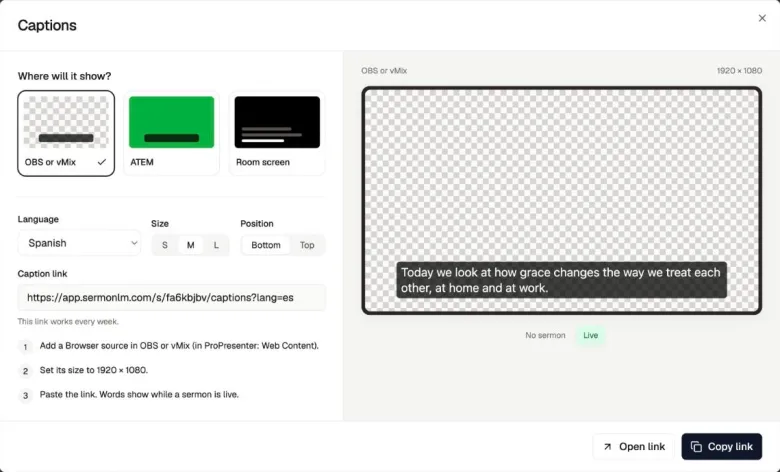
The link has your church's lobby code, not a sermon code, so it does not change. Use one link for each language. For two languages, add two sources and put one at the Top and one at the Bottom. The window remembers your choices in this browser.
Press Open link to open the real caption page in a new tab. Words show there only while a sermon is live. Before and after the sermon, and while it is paused, the page is empty.
If it does not work: if you see Select and copy the link., select the Caption link field and copy it yourself. Set up the church in Set up your church if you do not have a lobby link yet.
Add it to your software
| Where it shows | Steps |
|---|---|
| OBS or vMix | Add a Browser source. Set its size to 1920 x 1080. Paste the link. Put the source above your camera in the source list. The page is clear, so only the words show over your video. In ProPresenter, add the link as Web Content. |
| ATEM | Open the link full screen on the computer that feeds an ATEM input. The background is green. Use a chroma key on that input to remove the green. |
| Room screen | Open the link in the screen's browser and use full screen. The words fill the screen on a black background. |
What viewers see
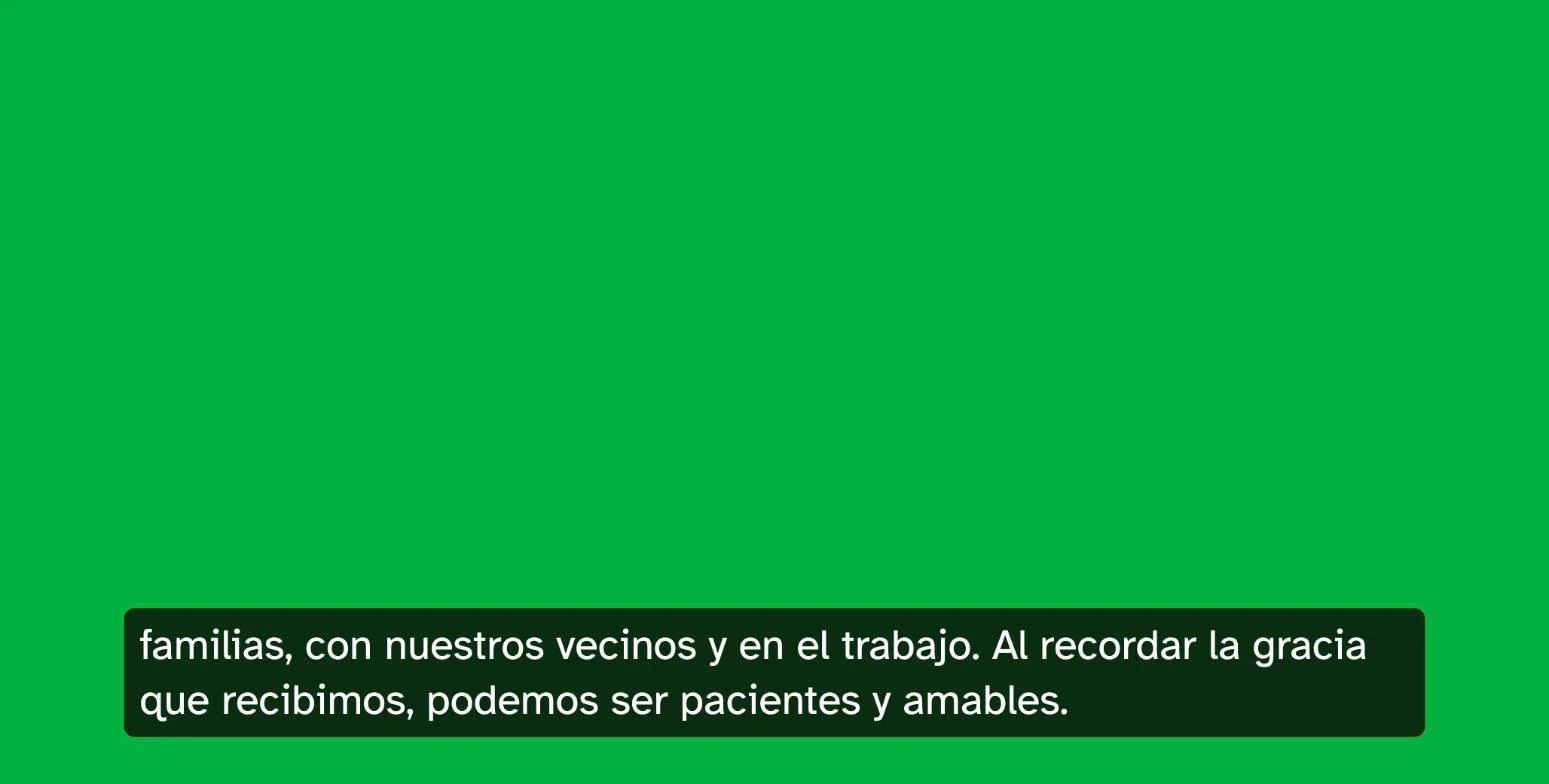
- While a sermon is live, the words of the chosen language come in at the bottom. Older lines move up. OBS or vMix and ATEM show up to two lines in a dark bar (black on ATEM).
- Before and after the sermon, during a pause, and when no new words come for 8 seconds, no words show.
- When the next sermon starts, the same link shows it. You do not need to reload the source.
- If two sermons are live at the same time, the link shows the one with its microphone on.
If it does not work: open the link in a normal browser while a sermon is live. If words appear there, check the source in your streaming software. If no words appear, check that the sermon is live and that the language is in today's sermon. Links copied before November 2026 belonged to one sermon. They now show nothing: copy the new link.