Share your link
This page is for church staff who help people join. Copy the guest link or download its QR code, then give translators their separate link.
Choose the right link
A QR code is a picture that a phone camera can open as a web link.
| Link | Who uses it | Where it goes |
|---|---|---|
| Church lobby | Guests, each week | Your church's list of active sermons. |
| Watch | Guests joining one sermon | That sermon's guest page. You find it as This sermon only in the studio's broadcast panel. |
| Translator link | People on your Translators list | Translator sign-in and your church's translator page. |
The church lobby address stays the same. A Watch link is for one session. Use the lobby QR code for printed material you want to use again.
To list ended sermons in the lobby too, open Settings under Organization. In the Permanent Lobby URL box, turn on Show past sermons in the lobby. Guests then see Past sermons under the live sermon, 10 at a time, and can open each one's download page. It is off until you turn it on. Anyone with the lobby link can see this list.
Copy or download the guest link
- Find Lobby link at the bottom of your church card on the dashboard. Your church address is shown there.
- Press Copy beside the address. The button says Copied.
- For a printed card or bulletin, press the download icon beside Copy. A PNG image of the QR code downloads.
Guests who use this link or QR code choose their language when they join. The guest pages show their words in the language of the guest's phone.
If it does not work: open the copied address on another device before you print it. Check that it opens your church. Guests see No service in progress when no sermon is active; the page checks for sermons by itself.
Make a QR code for one language
- Press the QR code picture beside Lobby link. Share Your Lobby Link opens.
- Choose a language in Language. The address and QR code change.
- Press Download PNG. The new code downloads for that language.
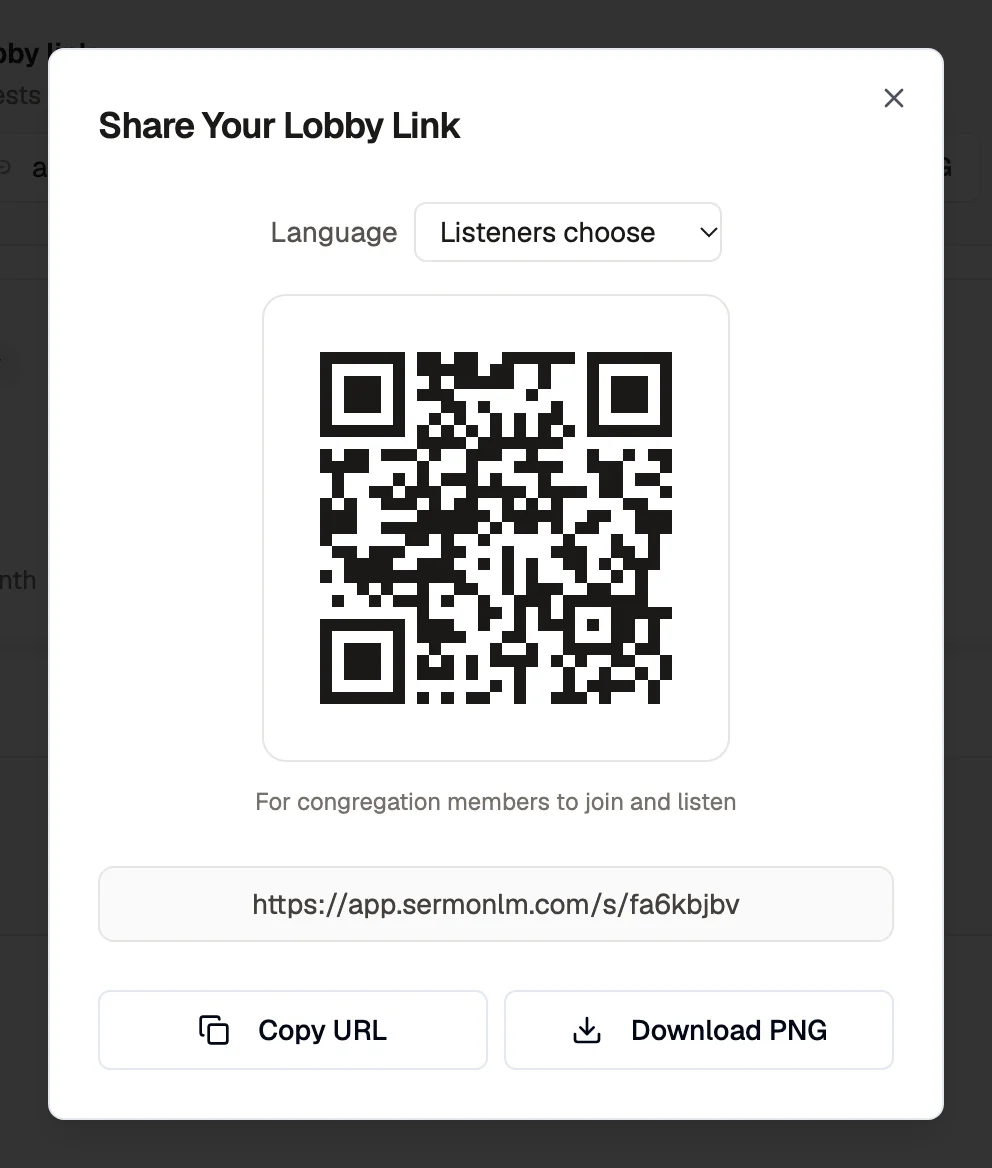
The code opens the church lobby with its words in that language. After a guest taps the sermon, it opens in that language without the language list, if the sermon offers it. If the language is not offered, guests choose from the available list. Label each printed card with its language so people can choose the right one.
If it does not work: check the sermon's translation languages. A language link does not add that language to the sermon.
Give translators their link
- Open Translators under Organization. Your translator list appears.
- Press Share. The share window opens for translators.
- Press the copy icon beside the translator address. Its tooltip says Copy URL.
- Send it to the people on your list. They will need to sign in with the email you added.
SermonLM also emails the link to each person when you add them. Use Share to send it again.
If it does not work: a link alone does not grant access. Check the email on the church list and ask the translator to verify that email. See Human interpreters.
For the guest's next steps, use For your guests.