Get help
This page is for church staff who need help with an account, sermon, or bill. Write one message to the SermonLM team, then read the reply in the app or in your email.
Guests and translators should first tell the church volunteer running the sermon. That person can send the message from the studio.
Try the right guide first
- Church sound, a stopped transcript, or a lost connection: Tips and fixes.
- Translator sign-in, microphone, or room problems: Translator problems.
- Guest phone sound or language choices: For your guests.
- Bills, credit, and plan changes: Plan and billing.
- Saving a finished session: End the sermon.
Send a message during a sermon
- In the Livestream Studio, press Get help at the bottom of the left panel. On a tablet or phone, tap the sermon title at the top first to open the panel. A small window opens over the studio. The sermon keeps running under it.
- Write what happened in What's going on?.
- Press Send. The app shows Sent. While a sermon is live, the window stays open and shows four quick fixes to try while you wait: words that stopped moving, a guest who hears nothing, a lost connection, and a card at the top. All steps opens the full fix. Press Write another message to add more.
While the sermon is live, the top of the window names it, for example Sermon ABC123 is live. We add it to your message. The message reaches the team marked as live and urgent, with that code, so you do not need to look it up. The guide links in the window open in a new tab, so the studio stays open.
Every message also carries what the app saw when you pressed Send: the page, the connection, recent error lines, your plan, and the sermon's connection events. It never carries the sermon's words, its title, or guest details.
Send a message at any other time
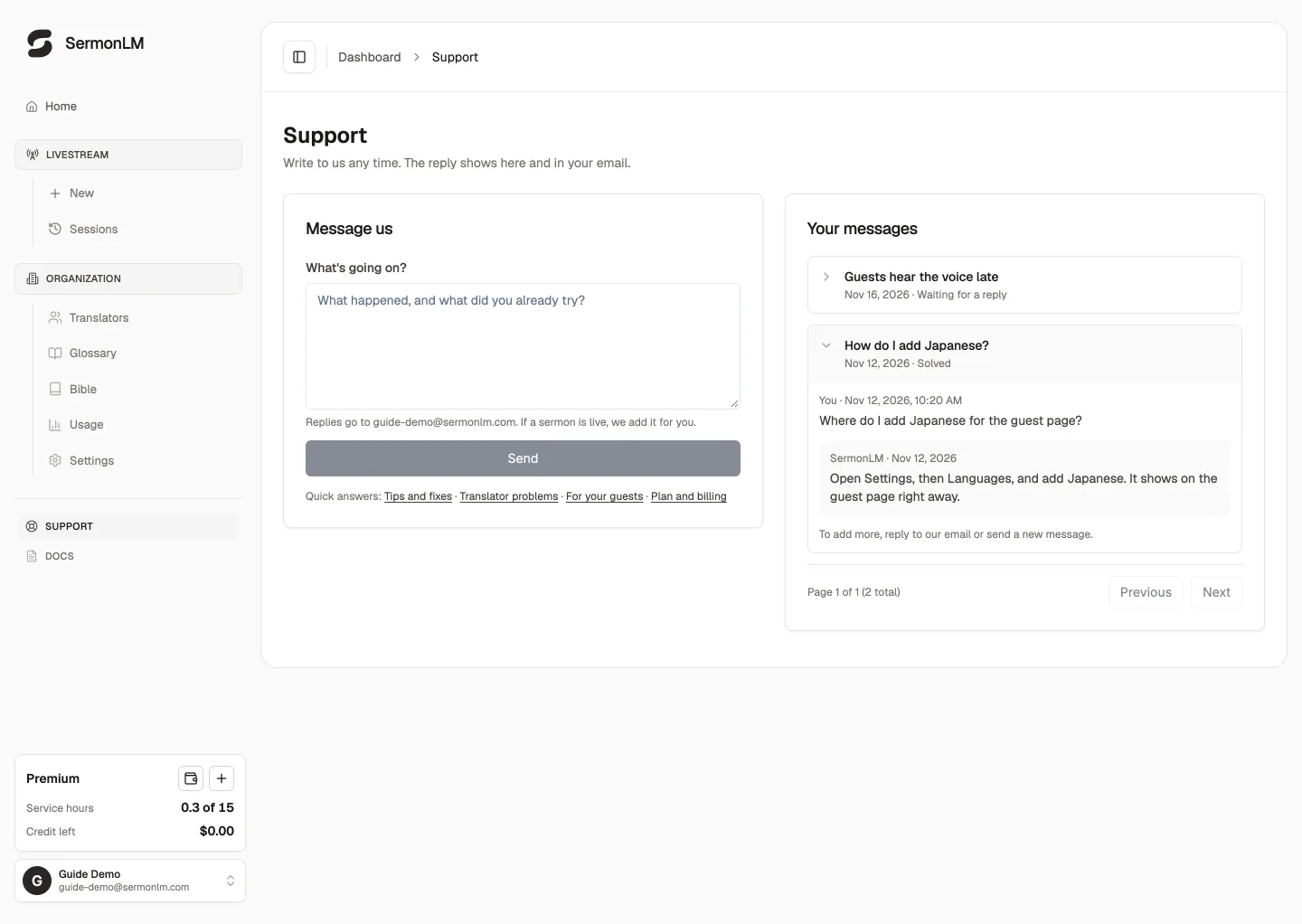
- Open Support from the church dashboard menu.
- Write what happened in What's going on? under Message us.
- Press Send. The app shows Sent.
There is no subject or category to choose: the first line of your message becomes its title. Replies go to your account email.
If it does not work: if the app shows Not sent, your text stays in the box: press Send again in a moment. A message can be up to 5,000 characters.
Include the details that help
Put these details in your message when they apply:
- For a past sermon: its title and date.
- The page where the problem occurred.
- The exact message shown on screen.
- Whether the problem affects church staff, a translator, or a guest.
- Device and browser used.
- What you expected, what happened, and what you already tried.
Do not include passwords or verification links. A plain description of the message is enough to start.
Read the reply
- Open Support. Your messages are listed under Your messages, newest first.
- Press a message. Your text and each reply from SermonLM show in order.
Each message shows where it stands: Waiting for a reply, We're on it, We replied, Solved, or Closed. To add more, reply to our email or send a new message.
If it does not work: use Retry if the list shows a load error. Check that you are signed in to the account that sent the message. A sent message does not mean that a live sound or connection problem is already fixed.