Get started as a translator
This page is for people who speak a live translation for a church. Sign in with your own account, find the church, and open a room in the language you will speak.
Use Your account for your name, photo, password, and the translator Account settings window.
Before you start
Ask church staff to add your name and email on their Translators page. Use that exact email to sign in.
When staff add you, SermonLM tries to send you an email with an Open translator page button. Keep this email. The button always opens the page with every church that added you. If it does not arrive, ask staff to use Share on their Translators page and send you the link.
One email can run a church or work as a translator. It cannot do both. If your email already runs a church, use a separate email for translation.
You can use a phone, tablet, or computer for your translator room. Have a microphone and headphones ready. A wired headset or USB mic sounds clearest. A Bluetooth earbud mic makes your voice sound like a phone call to guests. Keep the device on power for a long sermon.
Sign in
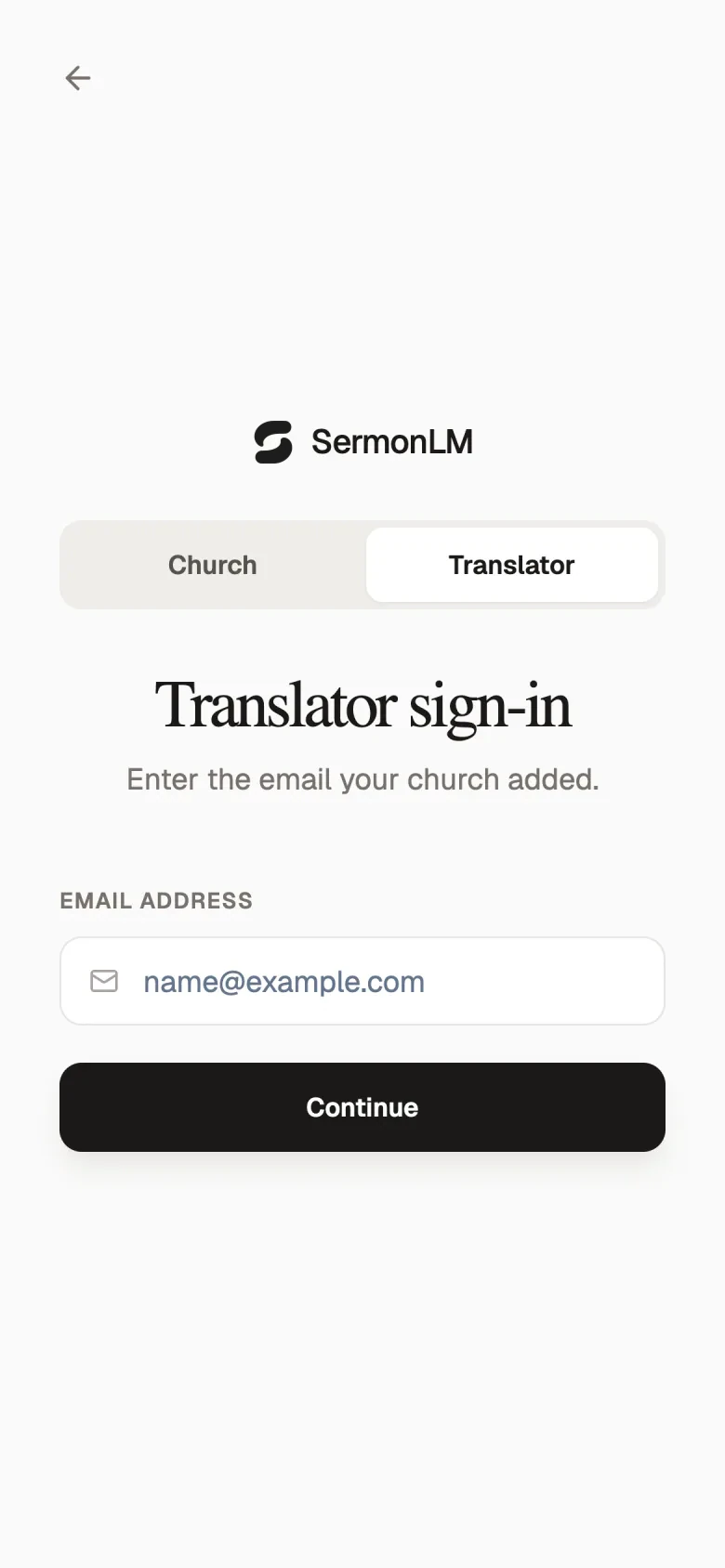
- Open the translator link from your church, or app.sermonlm.com/translate. Translator sign-in opens. It is the Translator tab of the sign-in page.
- Enter the email your church added in Email address. Press Continue.
- Follow what the page shows:
- Enter your password. Enter Password. Press Sign in.
- This email signs in with Google. Press Continue with Google.
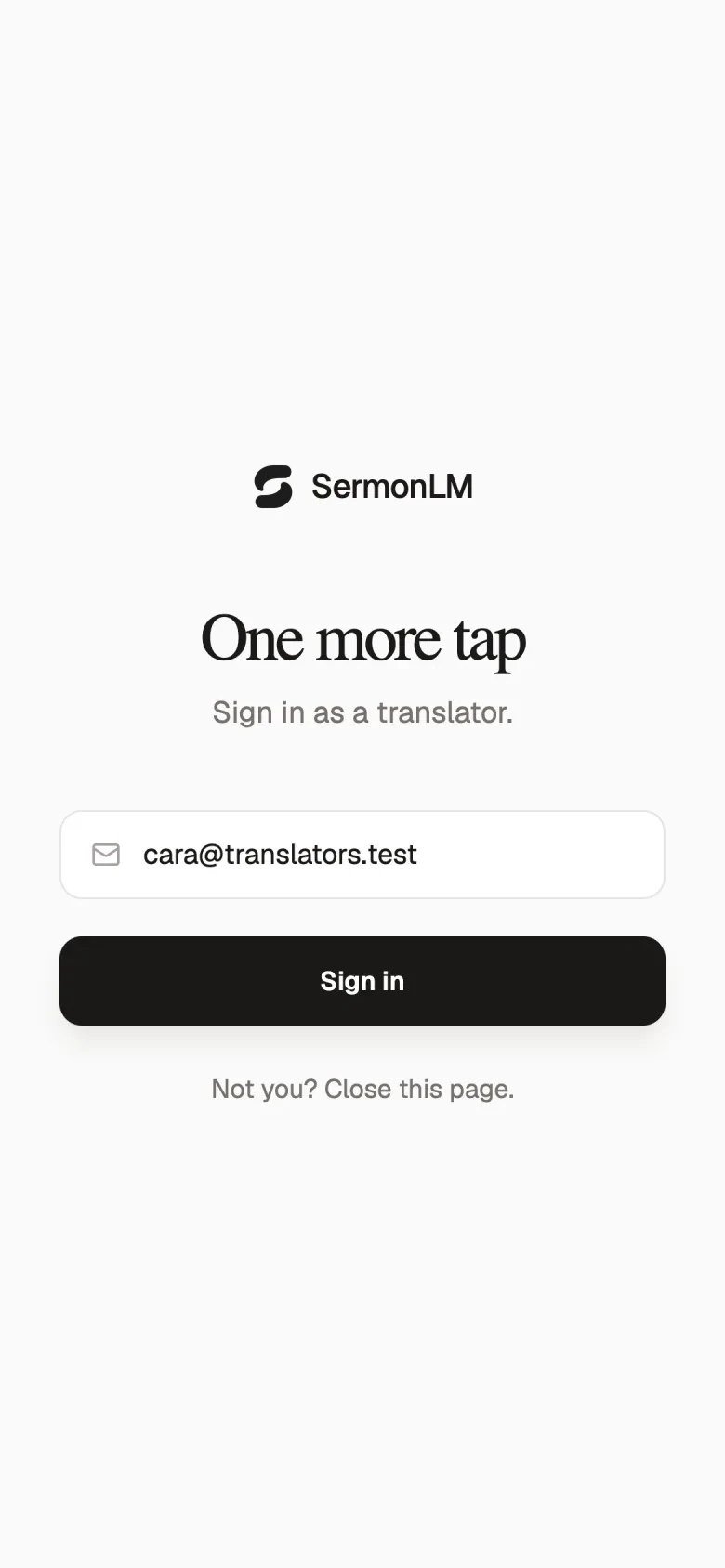
- Check your email. This is how you sign in the first time. Open the email Your SermonLM sign-in link. Press Sign in in the email. On the page that opens, press Sign in again.
- The first time, Set a password opens. Enter a password of at least 8 characters in Password and Type it again. Press Save password. Next time, step 3 shows Enter your password, so you do not need to check your email. Skip for now goes on without a password; the next email link asks again, or use Set a password in Account settings later.
- After you sign in, your translator page opens.
If you forgot your password, or Google is not on your phone, press Email me a link on that page. The link works one time, for 15 minutes. Opening the link does not sign you in by itself: press Sign in on the page that opens.
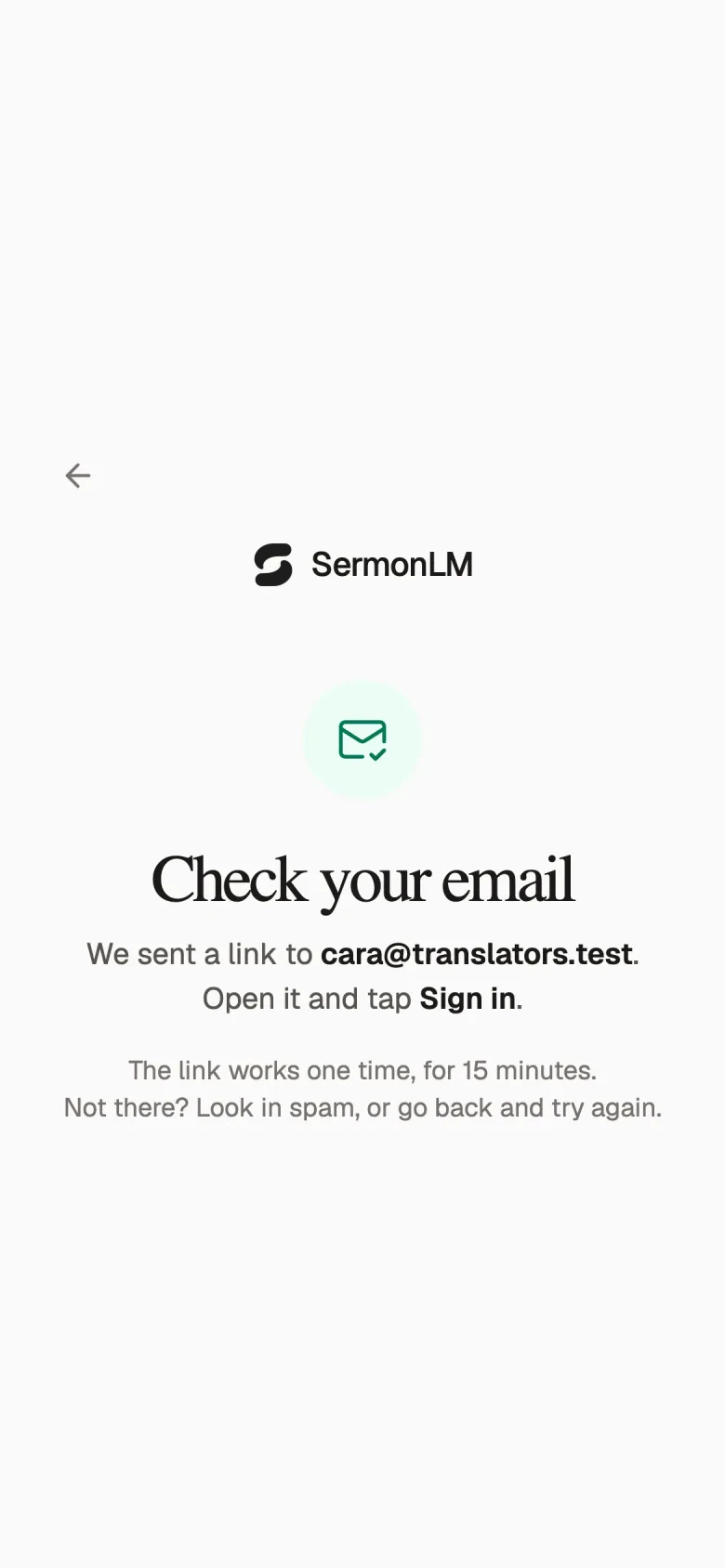
If it does not work: check your spam folder. Link expired means the link was used already, or is older than 15 minutes: press Get a new link. Not on a list yet means no church has added that email. This is a church email means the email runs a church, so a translator needs a different email. See Translator problems for a wrong email or a missing church.
Find your church
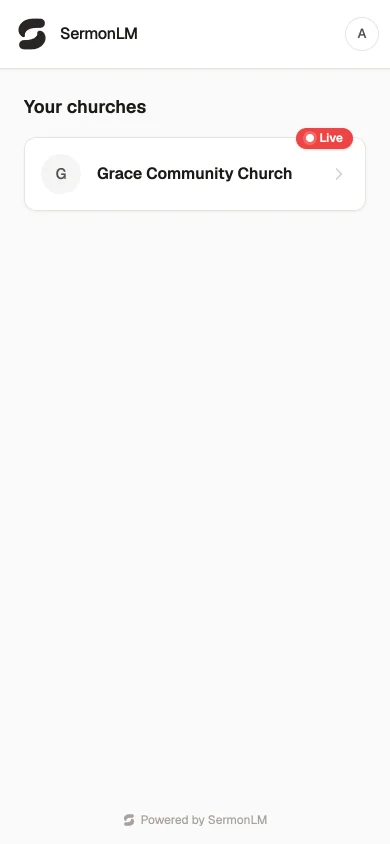
- Look for Your churches if you used the general translator link. Each card is a church whose list includes your verified email.
- Tap your church's card. Its translator page opens.
- Check the sermon title and speaker. Add room appears on an active sermon's card. If your room for that sermon is still open, the button says Back to your Spanish room (with your language) instead. Tap it to return to the same room.
A church link can take you straight to that church instead of the list. The sermon card says Starting soon, Live, or Paused. None of these means your own microphone is live.
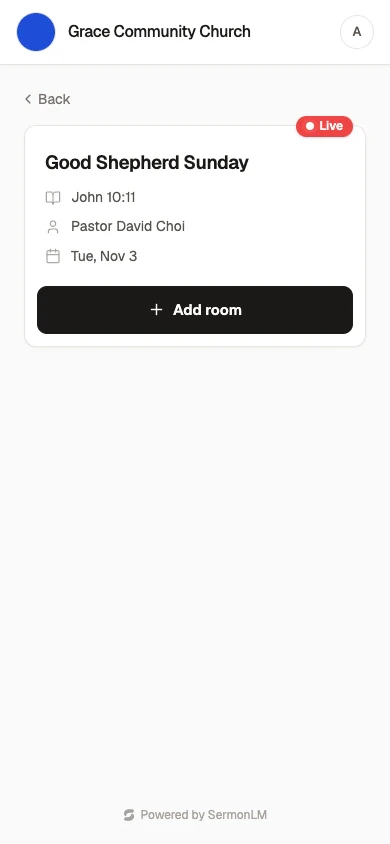
If it does not work: No sermon yet means there is no active sermon for you to join. The page checks again by itself. Ask church staff to start the session. No church has added you yet means staff need to check your account email against their list.
Pick the language and open your room
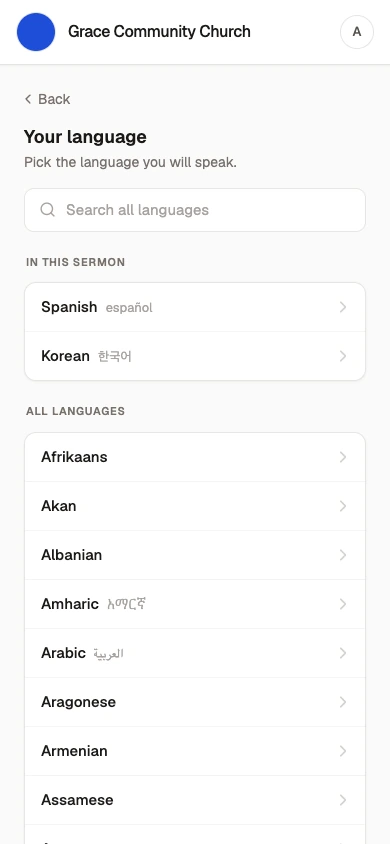
- Tap Add room on the sermon card. Your language opens.
- Search in Search all languages if needed. Matching languages appear.
- Tap the language you will speak. The room opens with Ready under the church name.
The list includes the sermon's translation languages and other languages. If your language is missing, type its name and use the Use “…” row with that name. A green person icon means someone has an open room in that language. They may still be Ready. You can choose the same language.
You have one room at a time for each church. Opening a new room ends your earlier room for that church, also in another tab or sermon. Use the existing room page when you only need to continue working.
A Ready room has End room next to Go live. If you chose the wrong language, press End room and confirm. Then use Add room again on your church page. Use Add room only for a new language: it ends your earlier room for that church.
If it does not work: keep the page open while the language rows are grey. If you see Still opening your room. Try again in a moment., wait, then tap the language again. If you see This sermon is not live now. Go back and check again., tap Back.