Plan and billing
This page is for the person who pays for SermonLM at church. See your plan and your hours, add credit, choose a plan, and find your receipts.
The prices and the number of languages in each plan are on Pricing. This page tells you how the plan works in the app.
How time is counted
SermonLM has two kinds of hours. It counts only while words are coming in. Quiet time is free. Singing counts, so press Pause during songs. If no AI language is on, each live hour counts as 1. Your own human translators add no hours. The clock in the studio is different: it counts microphone time.
- A service hour is one hour of live speech in your service. A monthly plan counts it once, in every AI language you have on.
- A translation hour is one hour in one language. Pay as you go and extra hours use translation hours.
A 1-hour service in 3 languages uses 1 service hour on a plan. On pay as you go it uses 3 translation hours ($30).
| Plan | What you get | When it runs out |
|---|---|---|
| Free credit | $10 of credit when you sign up. That pays for about 60 minutes in 1 language, 30 in 2, or 20 in 3. You do not need a card. Each email gets it once. | Add credit or choose a plan. |
| Pay as you go | No monthly fee. Up to 3 languages at once. Each translation hour costs $10 from your credit, billed by the minute. | Add credit. |
| Standard, Premium, Max | 10, 15 or 20 service hours each month, and 3, 5 or 7 languages at once. The hours start again on the 1st and do not carry over. Human translator rooms are at no extra charge, in any language, and do not count in the language limit. | Each extra hour costs $8 for each language. Credit pays first. The rest goes on your next bill, up to the price of your plan ($99, $299 or $499). At that limit, add credit to start a new sermon. |
Human translator rooms come at no extra charge with a monthly plan. Pay as you go and the free credit do not include them. A church that already has the Plus plan keeps it, but Plus is not sold now.
A sermon that has started always finishes, up to the 6-hour limit for each session. A limit only stops a new sermon, a new language, or a new analysis of sermon notes. If a sermon uses more than your credit, your next credit payment pays that amount first, and Home, Usage and the sidebar show Owed from past sermons with the amount instead of $0.00. To avoid extra charges on a monthly plan, stay inside your service hours.
On pay as you go, the studio tells you while the sermon is live. Credit is running low appears when your credit covers about 10 minutes or less in the sermon's languages. Credit is used appears when it is gone. Each shows once, and the sermon keeps going. We also email you at 80% and 100% of your credit, even if nobody is looking at the studio. The 100% email tells you the credit is used. A sermon that has started keeps going, and Plan & billing shows what you owe after it ends. Before a sermon, New Livestream shows the price for your languages and how many minutes your credit covers.
See your plan and hours
- Look at the plan card on Home. It shows your plan, the hours you used or the credit you have left, and the sermons that the plan counted.
- For the full page, press View plan on that card. You can also press your name at the bottom of the sidebar, then Plan & billing. On a phone, press the menu button, then Plan & billing.
- Read Current plan. It shows the service hours you used out of your hours, for example 3 of 10, or the credit you have left on pay as you go. If extra hours wait for your next bill, it shows the amount, for example Extra hours on your next bill: $16.00 (limit $99.00). Languages at once is the number of translation languages one sermon can have.
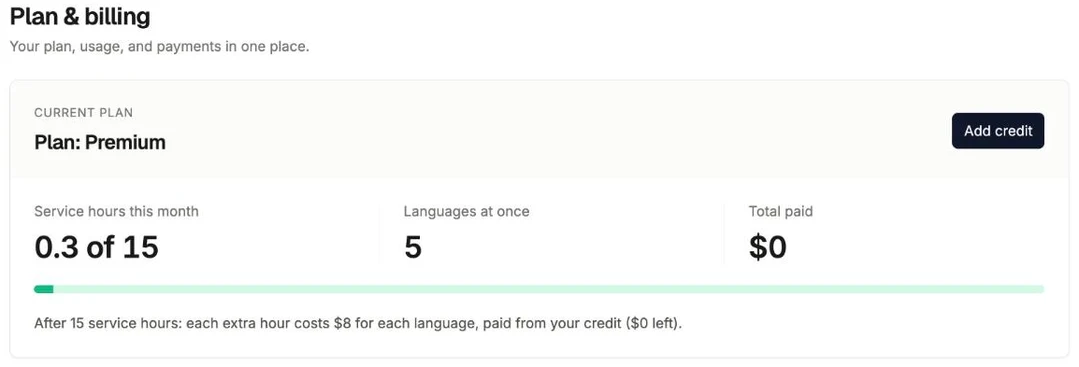
The bar is green. It becomes amber when the hours or the credit are almost used. It becomes red when a new sermon cannot start.
If it does not work: if the card shows a message in amber, read it. It tells you why a new sermon cannot start and what to do.
See each sermon's time
- Open Usage under Organization. The page shows your Service hours (or Translation hours on pay as you go), Sermons, and Languages for this month.
- Use the arrows beside the month to see an earlier month.
- Press a sermon title in the Sermons table. A window shows its date, speaker, duration, and languages. Open sermon opens the saved sermon.
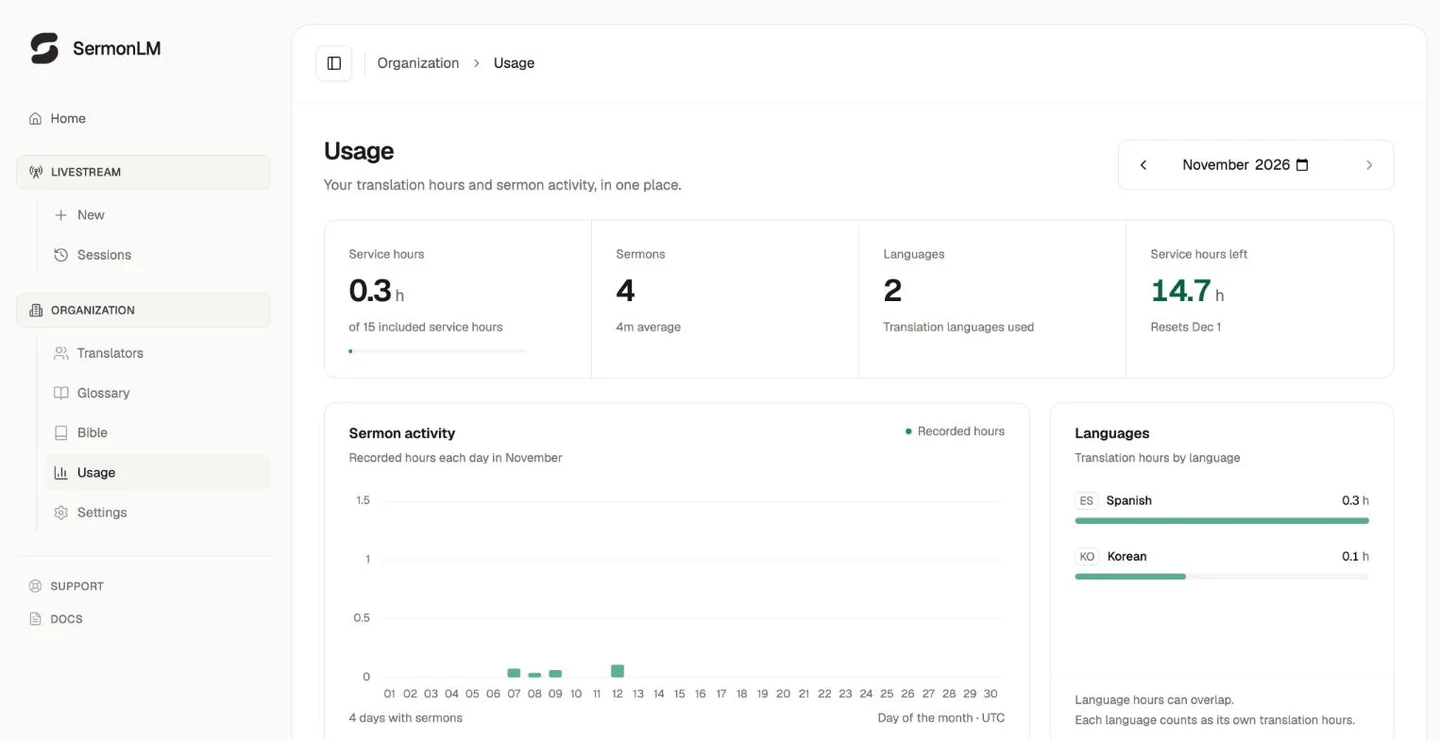
Languages shows the translation time for each language. Each language counts as its own translation hours, but a monthly plan counts the service only once. The chart shows the hours the microphone was on each day.
If it does not work: press Try again if the page cannot load. Dates on this page use UTC, so a late sermon can show on the next day.
Add credit
- Press Add credit on Home or on Plan & billing. The Add credit window opens.
- Choose an amount, or press Custom and enter whole dollars. The window shows about how many translation hours the amount gives. On a monthly plan, credit pays for extra hours.
- Check Balance after payment. The free trial does not show it.
- Press the button that starts with Pay and shows the amount, for example Pay $50 on Stripe. The Stripe payment page opens.
- Pay on Stripe. You come back to Plan & billing, and a message confirms the credit.
This is a one-time payment. SermonLM does not add credit by itself. If you are still on the old free trial, a credit payment ends the trial and starts pay as you go.
If it does not work: the page can need up to a minute to show the new credit: refresh it. A bank debit can need a few days. Payment canceled. Nothing was charged. means you left Stripe before you paid. If you paid and nothing changes, message Support with the date and amount you paid.
Choose a monthly plan
- Open Plan & billing. Find Plans.
- Press Choose Standard, Choose Premium, or Choose Max. The Stripe payment page opens.
- Pay on Stripe. You come back to Plan & billing, and a message says that the plan is active.
The plan renews each month through Stripe until you cancel it. The Choose buttons show only when your church has no active monthly plan.
If it does not work: the page can need up to a minute to show the new plan: refresh it. If the Choose buttons are missing, your church has a monthly plan now: see the next section to change it.
Change your monthly plan
- Open Plan & billing.
- Press Billing and receipts. Stripe's billing page opens.
- Press Update subscription, choose the new plan, and confirm.
A bigger plan starts at once: Stripe charges the price difference for the rest of this billing period to your card now. A smaller plan starts on your next bill date, and until then you keep the plan you paid for. The service hours you already used this month count toward the new plan's hours; hours reset on the 1st. If the new plan allows fewer languages, remove a translation language before your next sermon.
If it does not work: the new plan can need up to a minute to show in Plan & billing: refresh the page. If you see To change your plan, contact Support, or Stripe's page has no Update subscription, message Support with the plan you want, and we switch it for you.
Get receipts, change the card, or cancel
- Open Plan & billing.
- Press Billing and receipts. Stripe's billing page opens.
- Download a receipt, change the card, or cancel the plan there. A canceled plan stays active until the end of the period you paid for.
Payments and usage at the bottom of Plan & billing lists each payment and the cost of each sermon. Receipt beside a payment opens its Stripe receipt.
If it does not work: Billing and receipts shows only after you opened a Stripe payment page one time. Before that, there is nothing to show.
When a new sermon cannot start
The reason shows in amber under the sermon setup form, and again if you press Start Session.
- The free credit (or the hour of an old free trial) is used: add credit or choose a plan. A trial that started before 14 November 2026 can also have an end date; when that date has passed, do the same.
- The credit is too low: pay as you go needs credit for about 10 minutes in each language to start. Add credit.
- The service hours of this month are used and there is no credit: add credit for extra hours, or wait for the 1st. On a plan paid by card through us, extra hours can also go on your next bill; when they reach the limit, add credit.
- The sermon has more languages than the plan allows (3 on pay as you go and on Standard, 5 on Premium, 7 on Max): remove a translation language.
SermonLM sends you an email when most of your hours or credit are used, and again when they are all used.
If it does not work: a sermon that is live now is not stopped by these limits. If a message does not match your plan, message Support with the exact words.