After the sermon
This page is for church staff who need the saved text. Find a sermon, review its transcript and translations, or download text and subtitles.
A transcript is the speaker's words written as text. Subtitles are timed lines of text for a video.
Find the saved sermon
- Open Sessions under Livestream. The session list appears.
- Enter a title, speaker, or session code, then press Enter.
- Choose Completed, Drafts, or Live if you need to narrow the list.
- Open the sermon. Its detail page shows the transcript, languages, and downloads.
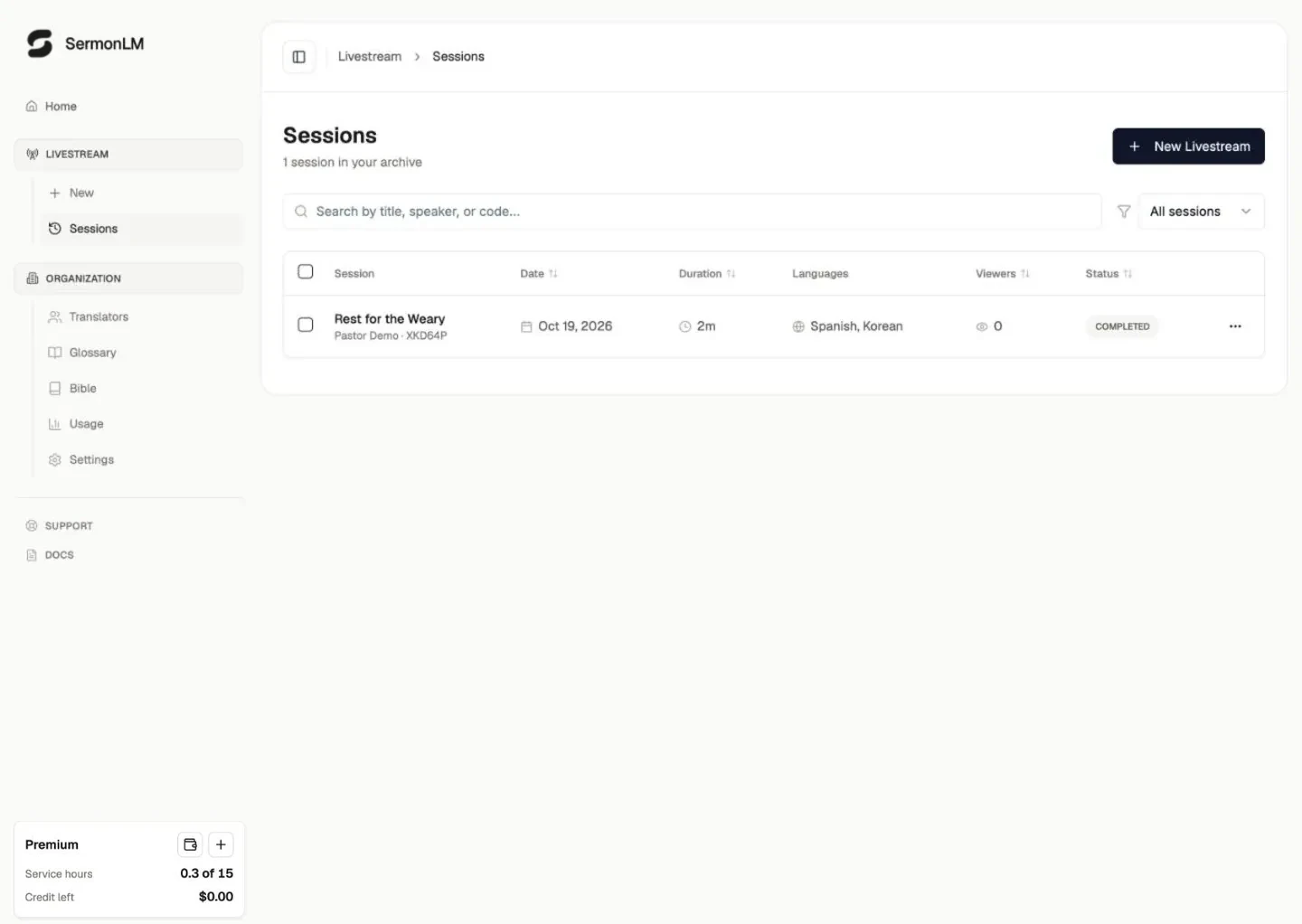
To clear the search, delete the text and press Enter again. For a draft, use Resume session from its row menu to open it in the studio. It opens paused; press Start Broadcast to go live again. A draft row shows Expires in with the number of days before it can be deleted, counted from its last activity.
If it does not work: clear the search and check Drafts as well as Completed. If the studio still shows a save error, keep that studio tab open.
Review the words and report
- Open the language choice beside Transcript. Original and the translation choices appear.
- Choose the language to read.
- Type a word in Search transcript... if you need to find a passage. Only the lines that match stay in the viewer.
The page also shows duration, Words, and Viewers. When available, Service report shows the translation hours this sermon used (an older sermon shows the hours it was recorded) and your service hours this month or your credit. Use Pricing for current plan details.
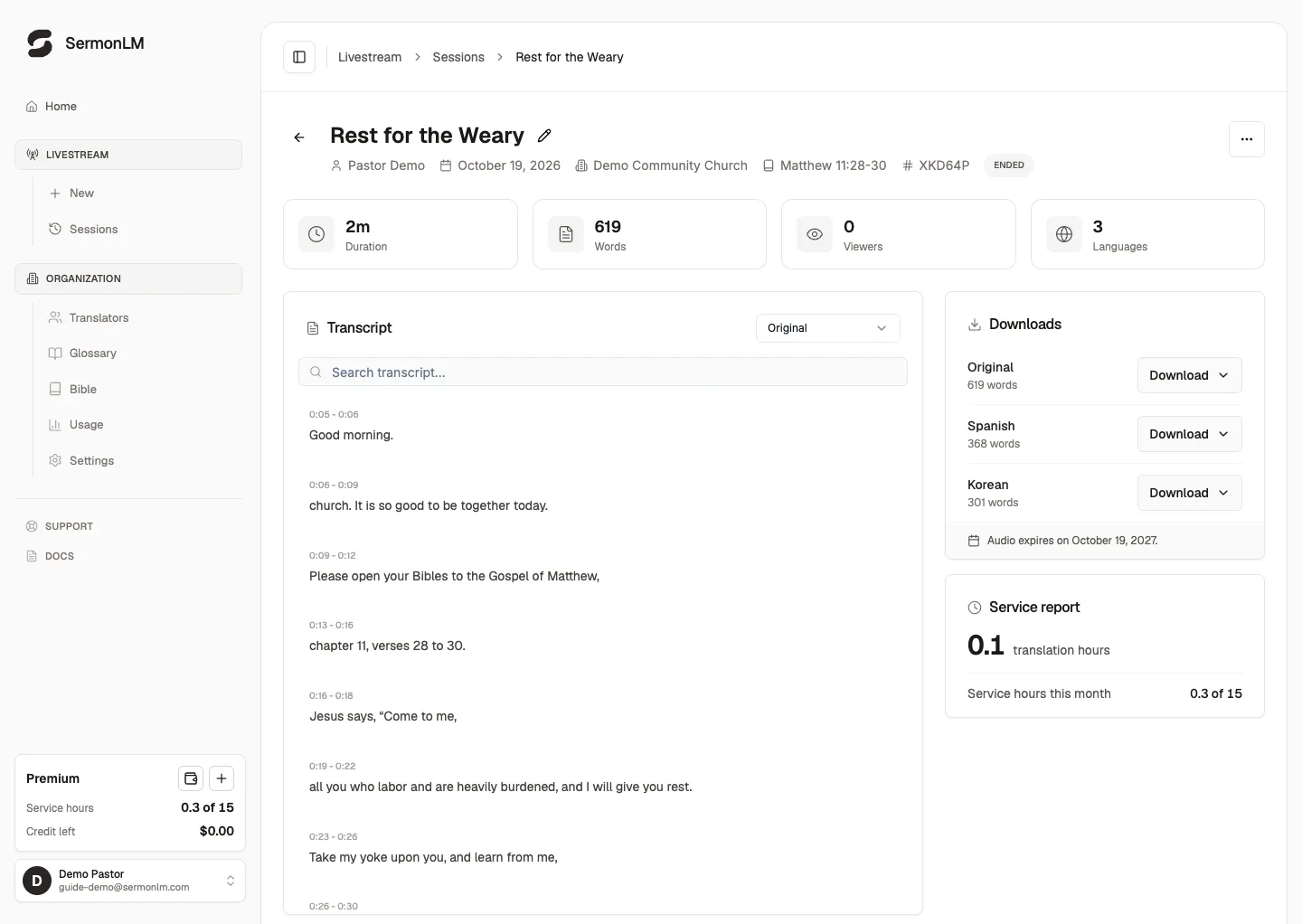
If it does not work: check that you opened the correct sermon and language. A live translator's spoken words are not the AI translation shown in this viewer.
Correct the details or delete a sermon
- Open the sermon from Sessions.
- Press the three-dot button at the top right, Session actions.
- Press Edit details to correct the title, speaker, date, passage, or church name.
- Press Delete session only if you intend to delete the sermon with its transcript and translations. For a draft, the name is Discard session.
To delete several sermons, select their boxes in the Sessions list, then press Delete selected.
If it does not work: you cannot undo a deletion. Download the text first if you might need it. Edit details and Delete session are off while the sermon is live.
Download text or a Word file
- Find Downloads on the sermon page. It has one row for each language: the original first, then each translation.
- Press Download beside the language you need. The menu shows the formats available for that language.
- Press Text to download a plain text (.txt) file.
For a Word file, press Word in the menu instead. The original transcript exports as paragraphs. A translation's Word file includes the original words beside the translation.
The menu also has Audio when that language's recording is saved. This is the original recording or that language's AI voice. The recording is kept for one year from when the sermon was created. The panel shows the date. It does not offer a recording of a live translator's voice.
To let guests download this audio from their download page too, open Settings under Organization and turn on Let guests download audio in the Guest downloads box. It is off until you turn it on. The recording has everything the church microphone heard, also songs and other voices.
If it does not work: check your browser's download list. Use the menu of the intended language; each language has its own file.
Download subtitles for a video
- In Downloads, press Download beside the language, then press Subtitles. Download Subtitles opens.
- Enter when the sermon starts in your video. For example,
1:30adds a minute and thirty seconds before the first sermon line. - Press Download SRT. The subtitle file downloads with a
.srtending.
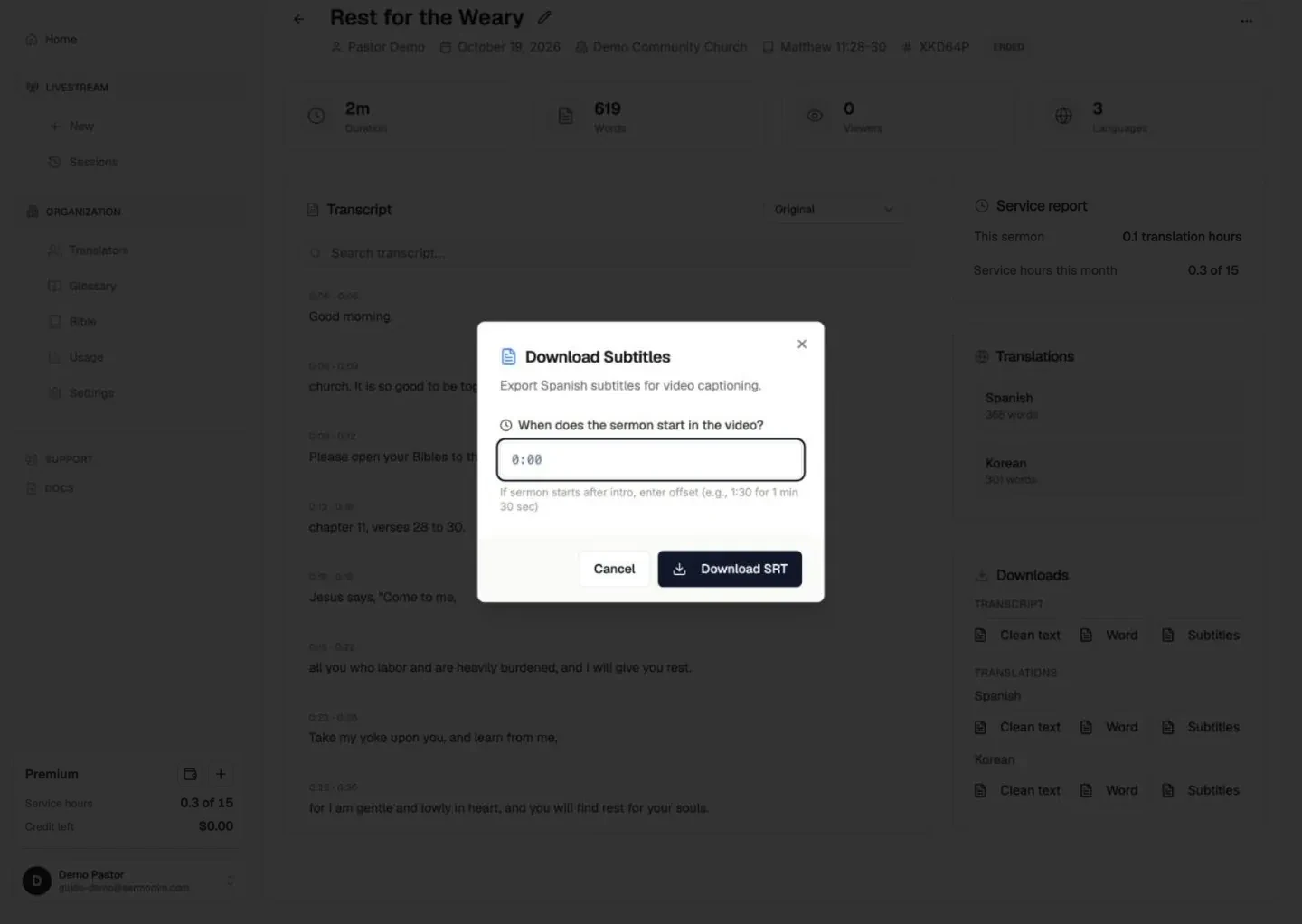
Leave the start time empty if the sermon starts at the beginning of the video. Check the file against your recording before you publish it.
If it does not work: use minutes and two digits for seconds, such as 1:30. If the lines appear too early or late, check the sermon start time and export again.