Translator problems
This page is for translators who cannot sign in, open a room, or hear sound. Find the message you see, then follow the steps for that problem.
Wrong email or missing church
Not on the translator list means the signed-in email cannot access this church. No church has added you yet means the general translator page has no church to show for your email. On the sign-in page, Not on a list yet means no church has added the email you typed.
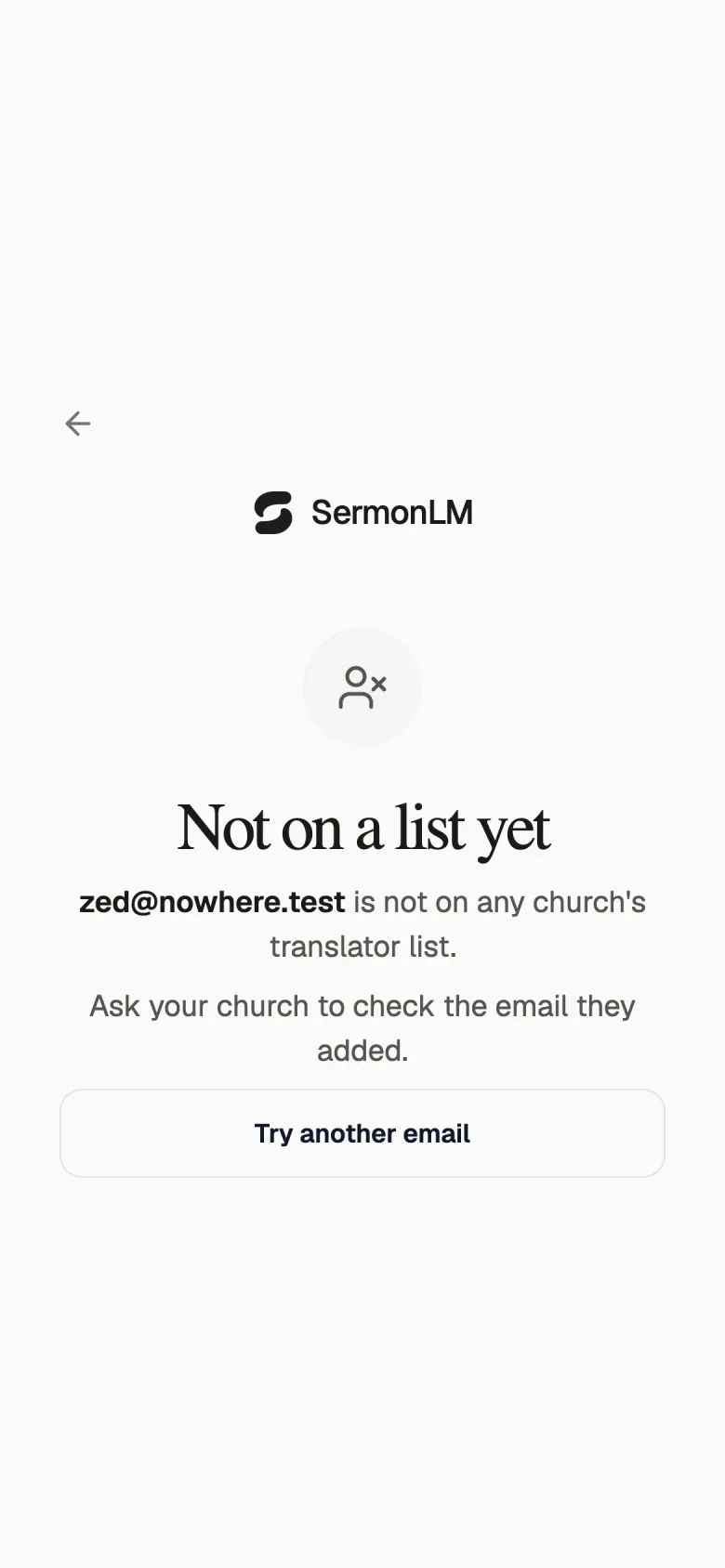
- Read the email shown on the page or in the account menu.
- Ask church staff to compare it with their Translators list. They can correct or add the address if needed.
- Use Sign in with a different email on the church page, or Use a different email on the general translator page, if you used the wrong account. The sign-in page opens after sign-out succeeds.
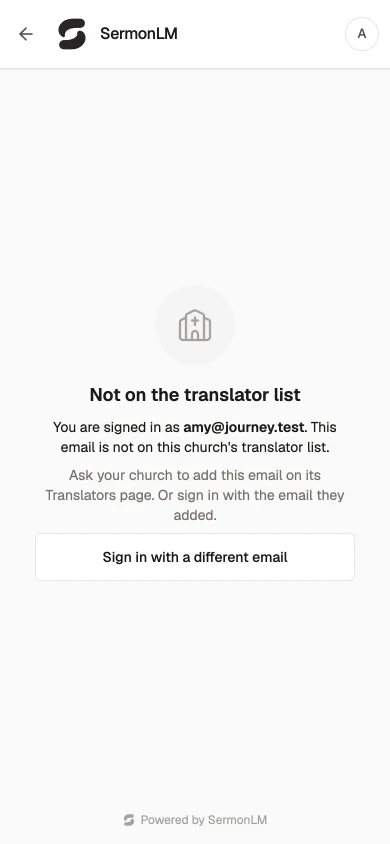
If it does not work: check email verification too. The same church-page notice can say to verify your email first. A translator link does not replace the account and church-list checks.
Email is not verified
Confirm your email first asks you to confirm the address before your churches can appear.
- Open the verification email in your inbox.
- Open that link. The account email becomes verified after the link succeeds.
- Return to the translator page. Your church can appear if staff added that email.
If it does not work: check spam. If you are still signed in, tap Use a different email first (on a church page, Sign in with a different email). That signs you out. Then open the Translator tab of the sign-in page, enter the same email, and press Continue. Open the new link and press Sign in. That also confirms your email. Do not create a church account as a way around verification.
This email runs a church
This email runs a church means the account cannot also act as a translator. On the sign-in page, the Translator tab shows This is a church email with Switch to Church. To type another email, press Back (on a phone, the arrow at the top).
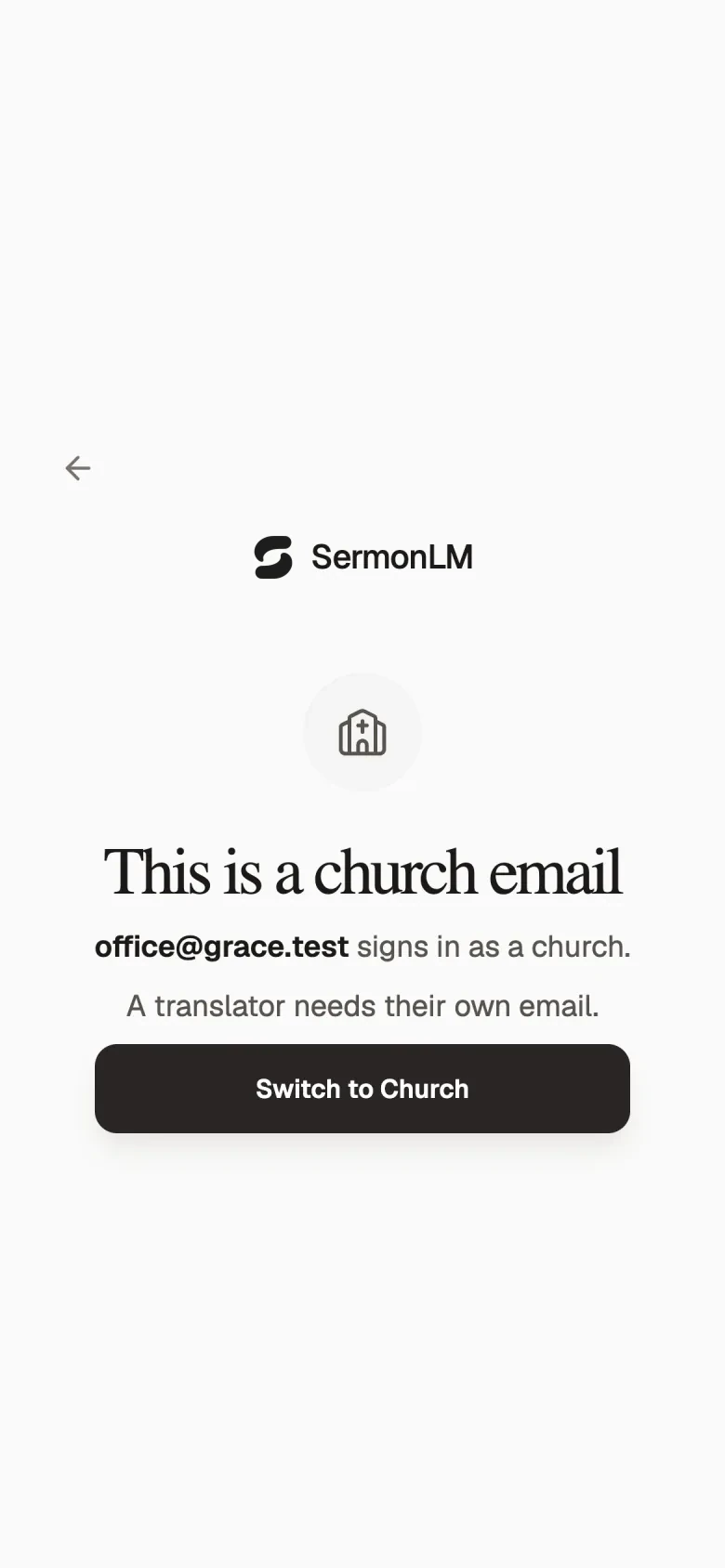
- If you open a translator link while signed in with a church email, the church dashboard opens. A window says This email runs a church.
- Press Use a different email. The sign-in page opens after sign-out succeeds.
- On the Translator tab, sign in with a separate translator email. The translator page opens for that account.
- Ask staff to add that email to their Translators list. Access becomes available after the email is verified and listed.
If it does not work: check which email you typed on the sign-in page. Creating another room does not change the account's role.
No sermon yet
No sermon yet means the church has no active sermon on this page. It checks again by itself.
- Check the church name at the top.
- Ask staff to start the church session. Its sermon card should appear after the page refreshes its list.
- Tap Add room when the card appears. Your language opens.
If it does not work: use the church link staff sent you. Tell them which church and email you see. You cannot start the church's sermon from the translator page.
Your room was ended or you were removed
Read the sentence below Your room was ended. It tells you whether the church ended the room or you are no longer on its translator list.
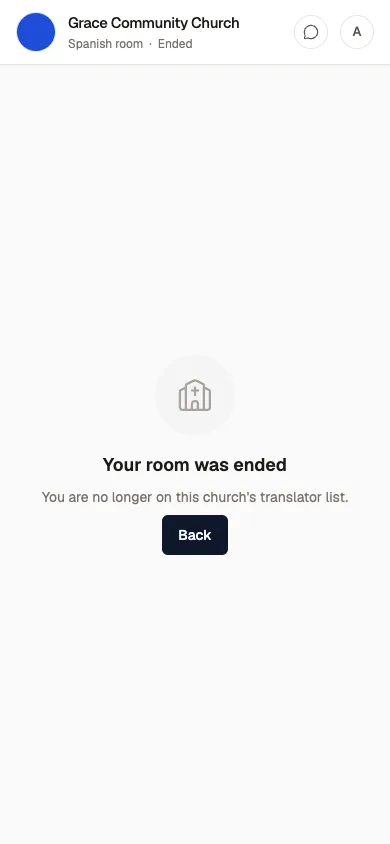
- Tell church staff the exact message.
- Use Back to return to the church page if the notice offers it.
- Use Add room only after staff confirm you should open another room. The language page opens if your access is valid.
If it does not work: only church staff can restore a removed list entry. The sermon has ended means the service itself finished. Your room moved to another device. means another device took over; check with staff before starting a new room here. Your room timed out with Add a new room to translate again. shows when your room lost contact for too long. Your room has ended with the same sentence shows when you ended the room, or when you opened a newer room in another tab or sermon. This room is closed means you opened an old room link: press Back.
You cannot hear the speaker
- Put on headphones. They prevent the speaker's sound from reaching your microphone.
- Turn on Listen. Its sound dots can show incoming sound.
- Tap Tap to hear the sermon if shown.
- Raise the device volume. Check whether the speaker is audible.
- Send I can’t hear through Messages if it is still silent. Staff see the message in your room tab.
If it does not work: The church's sound is not on yet. means staff need to check their input. Could not play the sermon sound. Trying again. means playback failed and the page is retrying. Check the headphones and tell staff which message you see.
Guests cannot hear you
- Check the room header. Ready means you have not gone live.
- Press Go live if ready to translate. A successful connection changes the header to Live.
- Press Unmute if it is shown. While you are muted, the header says Muted and guests see Paused.
- Speak into the selected microphone. The Speak dots should move.
- Ask staff to use Listen in your room tab. This checks the sound reaching the church computer.
If it does not work: The microphone is blocked. Allow it for this site in your browser, then press Go live. means allow microphone access in browser settings. No microphone found. Plug in a microphone or headset, then press Go live. means plug in or choose a microphone. Another app is using the microphone. Close it, then press Go live. means close that app. Your phone paused the microphone. means the phone took the microphone for something else, such as a call: finish it and the microphone comes back. Select the intended microphone before going live. If staff hear you but one guest does not, ask the guest to use Start audio or Unmute audio. Follow the guest guide.
Lost connection or a reload
- Restore the device's internet connection.
- Wait while the header says Reconnecting…. Your room goes live again by itself. Keep the page open.
- Press Reconnect if the transcript error offers it to resume transcript updates.
- Check the room header after the connection returns. Confirm whether it says Ready or Live.
- Press Go live only if the page says it could not go live again. Ask staff to check your sound.
A reload of the same live room tab tries to resume the microphone and keep its mute state. A new tab starts Ready. When all room tabs stop checking in for about two minutes, the room times out. Use Add a new room if the timeout notice offers it.
Guests can move to another source after a short drop. They may return when the same room becomes live again, unless they chose another source.
A card at the top that says Listeners cannot hear you. Press Go live to start again. means your sound stopped and did not come back by itself: press Go live.
If it does not work: send staff the exact error, church name, and sermon title. If needed, ask them to message Support. Repeatedly creating rooms can replace the room you were using.