Run your translator room
This page is for a translator who has opened a room. Check your microphone, hear the speaker, and go live when you are ready to speak.
If you have not opened a room yet, use Get started as a translator.
A real test room, with sound, at normal speed. Translator phone on the left, guest phone on the right: open the room, check the microphone, hear the speaker, go live, mute, message the church, and end the room. The guest then moves to AI voice.
Check the microphone while Ready
- Check Ready under the church name. Guests cannot choose your room yet.
- Allow microphone access if the browser asks. The Speak dots can now show your microphone level. The first-use tip says A wired headset or USB mic sounds clearest. Bluetooth earbud mics sound like a phone call.
- Say a few words. The dots beside Speak light up when the microphone receives sound.
- Use the microphone arrow if more than one input is listed. Select Microphone opens.
- Choose the input you will use.
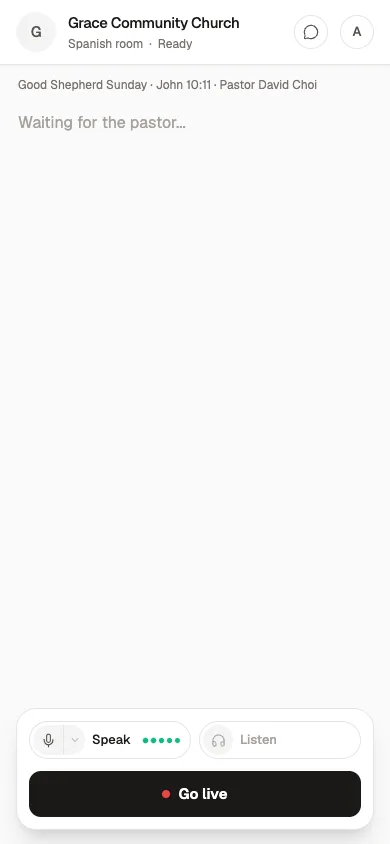
Choose the microphone before going live. The input menu is hidden while you start or send live sound. The transcript shows the speaker's words, not the words you speak into Speak.
If it does not work: the page says what is wrong. The microphone is blocked. Allow it for this site in your browser, then press Go live. means the browser permission is off. No microphone found. Plug in a microphone or headset, then press Go live. means none is plugged in or listed. Another app is using the microphone. Close it, then press Go live. means close the other app first. If the microphone check is not running, tap the microphone icon beside Speak (Check microphone) to start it. See Translator problems if the dots stay grey.
If you chose the wrong language, press End room next to Go live and confirm. Then pick the right language on your church page.
Hear the speaker
- Put on headphones. They keep the speaker's sound from feeding back into your microphone.
- Tap Listen. The first-use tip says Use headphones.
- Tap Tap to hear the sermon if it appears.
- Check that you can hear the speaker. The dots beside Listen move with the sound received.
Speak checks or sends your microphone. Listen plays the church's sound for you. Turning Listen on does not send your voice to guests.
If it does not work: The church's sound is not on yet. means the church is not sending a sound track. Send I can’t hear through Messages and ask staff to check the church input. Check your headphone connection and device volume too.
Go live and take a break
- Press Go live. When the sound connection succeeds, the header changes from Ready to Live with a timer.
- Speak the translation into your microphone. Guests can now select your named room in the language list.
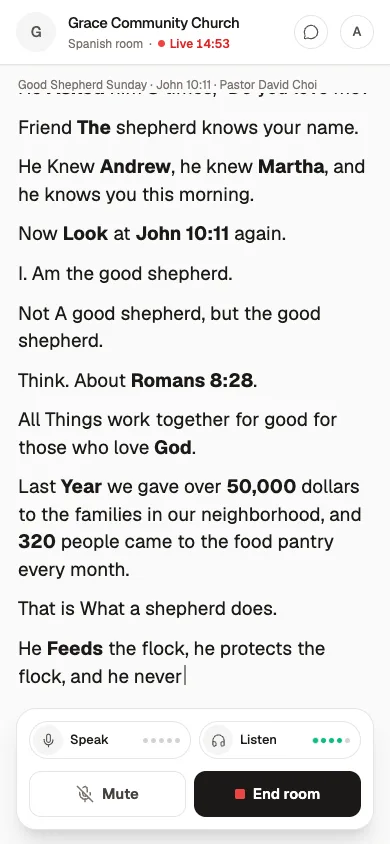
For a short pause:
- Press Mute. The button changes to Unmute and your microphone stops sending sound.
- Press Unmute when you are ready.
While you are muted, the header adds Muted after the time. Church staff see Muted on your room card, and guests in your room see Paused. Guests remain in the room and hear no microphone sound during the pause. Use Messages to arrange a longer break with church staff.
If the church pauses the sermon, Sermon paused shows where the transcript ends. Your room keeps going: guests in it still hear you, and Listen still plays the speaker. The transcript continues when the church starts again.
If your connection drops, the header says Reconnecting… and your room goes live again by itself when the connection is back. Keep the page open. Press Go live only if the page says it could not go live again.
If it does not work: the Speak dots prove the microphone receives sound, not that a guest can hear it. Ask staff to check your room with Listen. If an error asks you to press Go live again, follow that message.
Use a Bible verse card
When the speaker names a Bible reference, a verse card can appear above the controls. It uses the Bible version set for your room's language in this sermon.
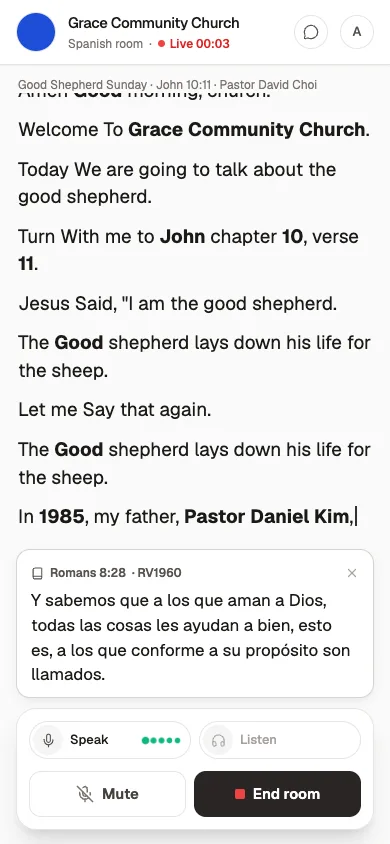
Tap the card's close icon to hide it. A new detected reference can show a new card.
If it does not work: a card needs a Bible version for that language in the sermon. A language outside the sermon's translation choices has no verse card. Keep translating if no card appears; the card is help, not a full list of every quotation.
Message church staff
- Tap the message icon at the top right, Messages. The message panel opens.
- Tap I can’t hear, Sound is back, I need a break, or Ready. The chosen message is sent to the church's room tab.
To write your own message, type in Message the church…, then press Send. The sent text appears in the thread after a successful send.
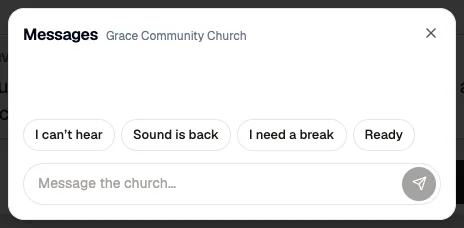
A green dot on Messages marks an unread church message. A new church message also appears briefly above the transcript. There is no sound alert. You can send messages before going live.
If it does not work: read the error in the panel. A message can have up to 300 characters. Too many messages. Wait a moment. means you sent more than 10 messages in 30 seconds. Check that the room is still open before you send again.
End your room
- Press End room, in Ready or while live. End your room? opens.
- Press End room in the confirmation. Your microphone stops and you return to your church page.
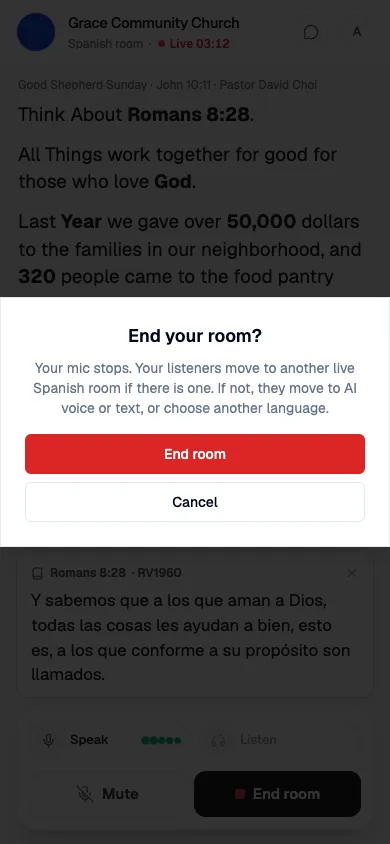
Guests move to another live room in your language, then to the AI voice or text if available. Otherwise, the language list opens. Ending your room does not end the church sermon.
If it does not work: the page does not show an error when the end request is not confirmed. Your microphone is already off. Ask church staff to check that your room is gone from their room tabs, and to end it from its studio tab if it is not. Leaving the console inside the app also ends the room; closing the browser tab is not the same as a confirmed End room.
Reload during the sermon
Reload the same room tab if needed. The room can stay open. If it was live, the page tries to start the microphone again and keep its mute state. Allow microphone access if asked.
A new tab starts Ready. If the page says Could not go live again. Press Go live to start again., press Go live when your microphone is ready.
If all room tabs close or lose their connection, the room times out after about two minutes. Guests can move to another source sooner when the live sound drops.
If it does not work: use Translator problems. Check Live and ask staff to confirm the sound after a reload.