For your guests
This page is for people who want to read or hear a sermon on their own phone. You do not need a SermonLM account or an installed app.
The page uses your phone's language. To change it, use the language list at the top right of the church lobby or of the Choose your language page. After you choose a sermon language, the page uses that language. The names in bold on this page are the English words; you can see the same button in your own language. Language names show in their own language, for example Español.
Open the sermon
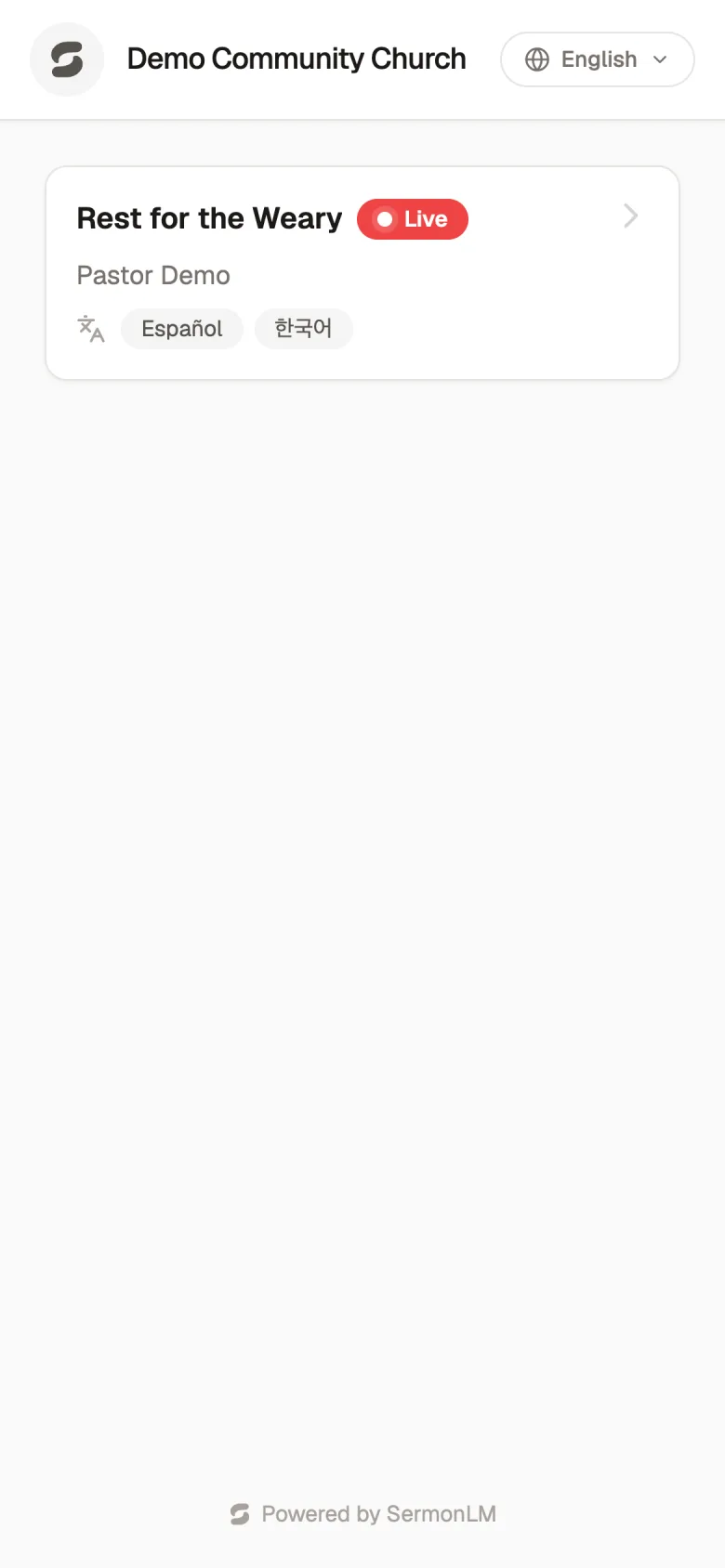
- Scan the church's QR code with your phone camera. The camera shows a web link.
- Open the link. It opens the church lobby or the sermon.
- If the lobby appears, tap the sermon card. It may show Starting soon before sound starts, Live when the microphone is active, or Paused while the studio is paused.
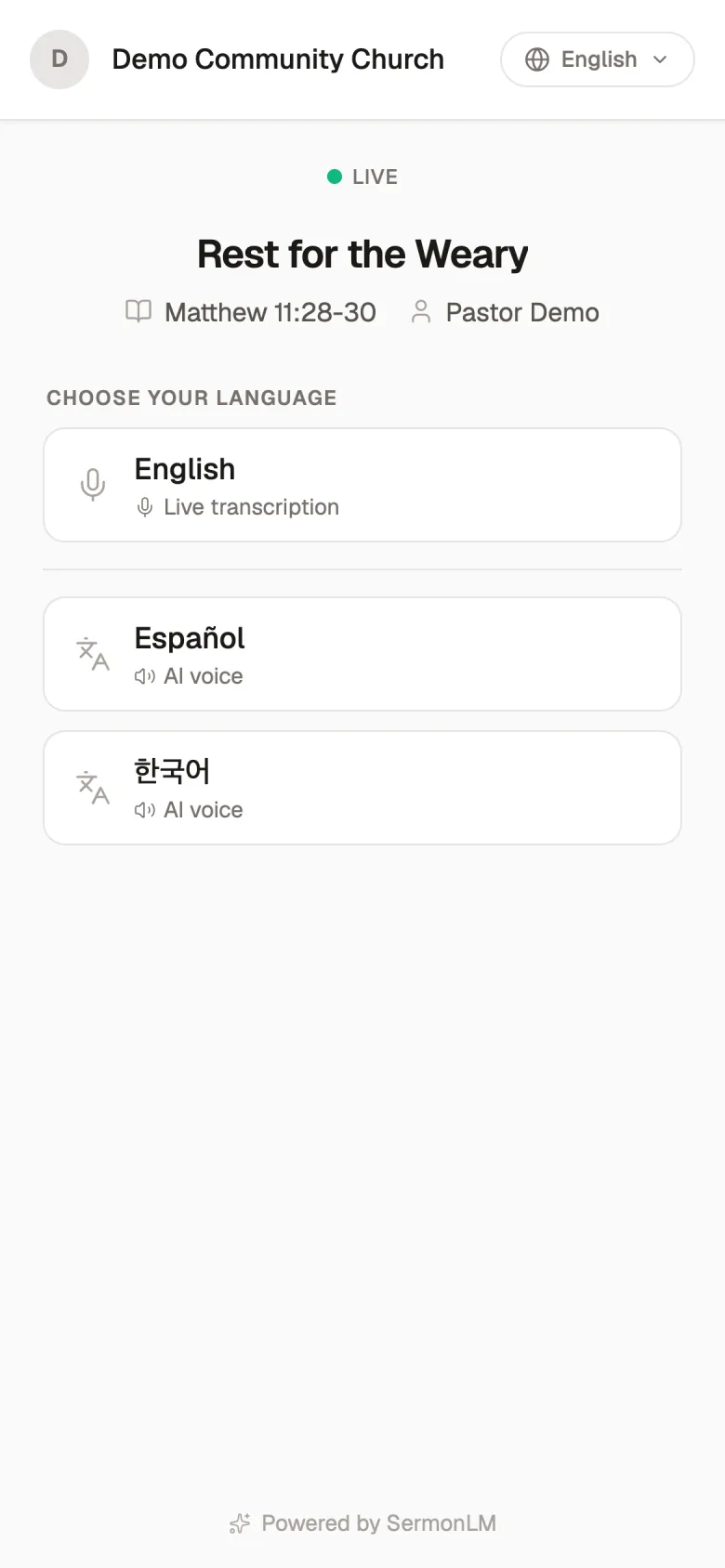
- Choose a row under Choose your language. The sermon text opens with that source selected.
| Row label | What you get |
|---|---|
| Live transcription | The speaker's words as text in the spoken language. |
| Text only | The AI translation as text, without a voice. |
| AI voice | The AI translation as text and computer speech. |
| Translator · followed by a name | That person's live voice. Several people can have rooms in the same language. |
A translator room shows after the translator presses Go live. If the room's language has no AI translation, its page shows the speaker's words while you hear the translator.
If it does not work: No service in progress means the lobby has no active sermon. Keep the page open while the church starts. If you have a direct sermon link, you can open that instead of the lobby. Waiting for host in the bottom bar means the church's studio stopped sending or lost its connection. Paused means the church paused the microphone; in a translator's room it means the translator muted their own microphone, and a church pause does not stop the room. The words you have stay on the page.
Turn on the sound
- Tap Start audio if Tap to start audio appears.
- Turn up your phone or headphone volume. You should hear the source you selected.
The speaker button in the bottom bar turns the sound off and on. It is green when the sound is on. If you turned the sound off, tap it again; its name is Unmute audio. The sermon text continues while the sound is off. If you opened a link made for one language, such as a language QR code, the sound starts off: tap the speaker button once.
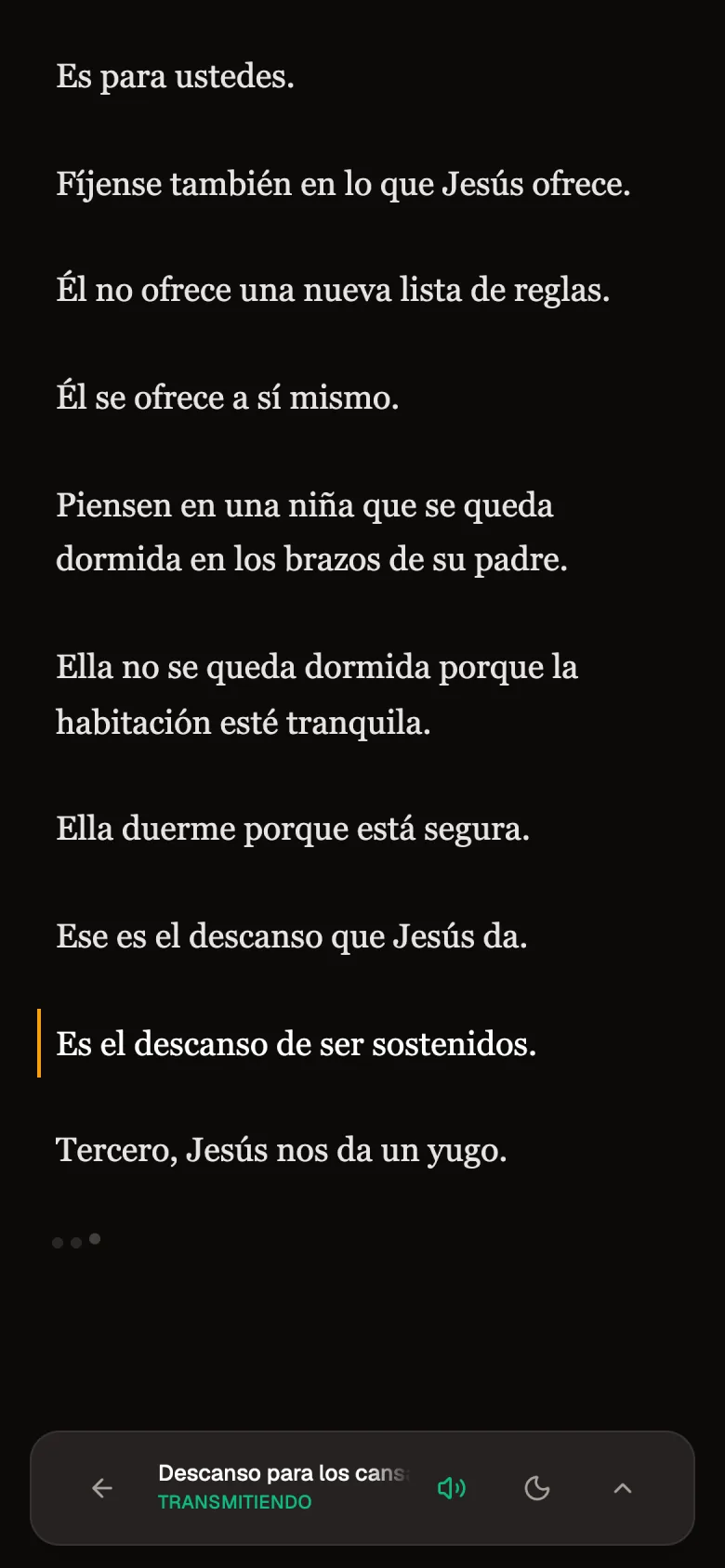
Use headphones in the church so the phone does not disturb other people. AI speech follows the speaker with a delay. A moving transcript does not mean the phone's sound is on.
With AI voice, while the sermon is live or paused, tap a line to hear the sermon from that line. The voice plays the next lines in order, then continues with the new ones. If the sound is off, the tap turns it on. A line that has no AI speech yet does nothing when tapped. When you come back to a language, the voice starts at the newest line.
If it does not work: check which source you selected. Text only has no sound. Ask church staff to check the selected voice or translator room if more than one phone is silent.
Make the words easier to read
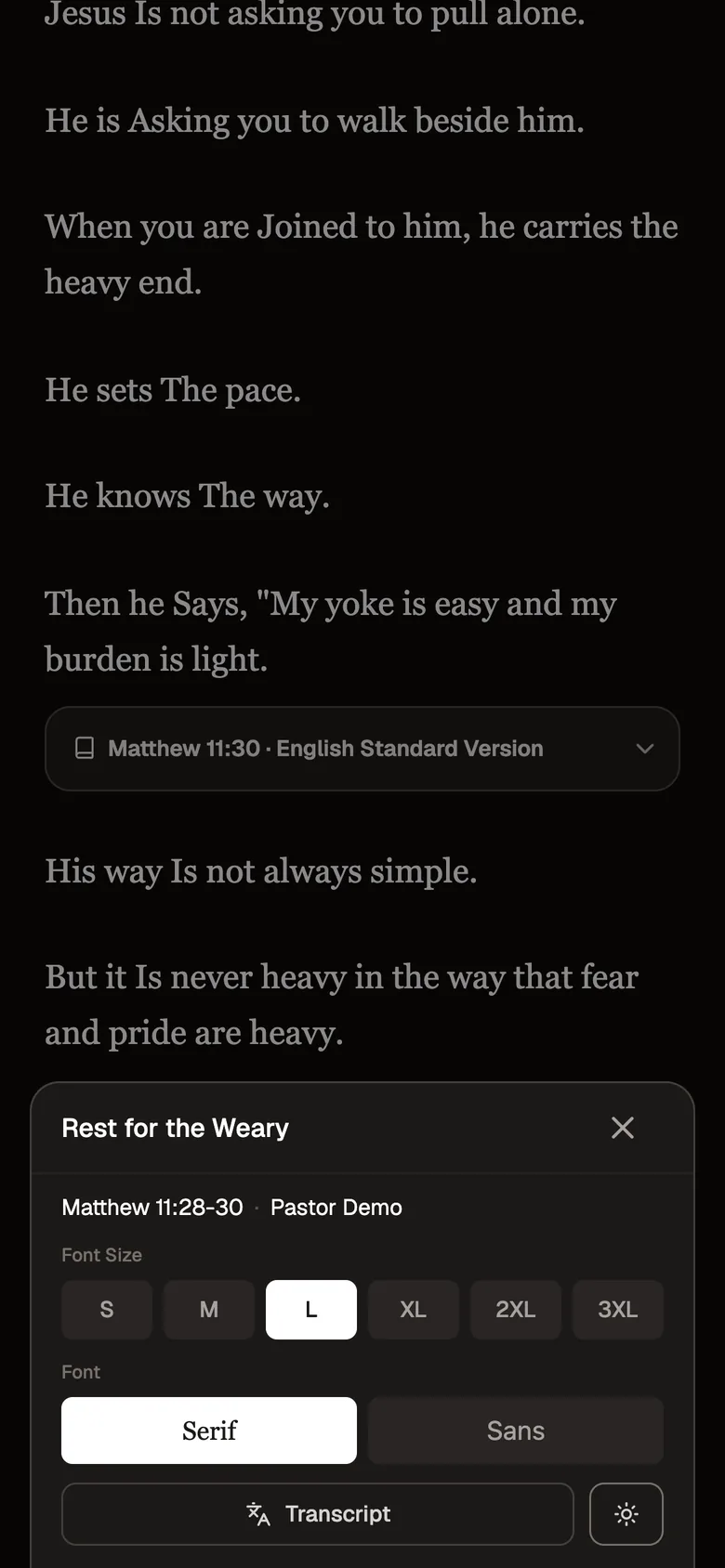
- Tap the up arrow in the bottom bar. The text size choices appear.
- Under Font Size, choose a size from S to 3XL.
- Under Font, choose Serif or Sans. Your phone keeps this choice.
- Tap the moon or sun button if you need a different background. The page switches between dark and light mode.
To change the language or the voice, tap the left arrow in the bottom bar. The language list opens again, and Last used marks your last choice.
If it does not work: close the size panel to see more of the sermon. Check the phone's brightness if the words are still hard to read.
If a translator stops
The page first looks for another live room in the same language. If none is available, it uses that language's AI voice, then text if that is what the church offers.
If you move to another voice or text, a note says what changed. Tap Change to choose another source. If no source is available, the language list opens.
If a new translator goes live in your language while you use AI voice or text, Switch lets you choose that person. You stay on your current source unless you tap it.
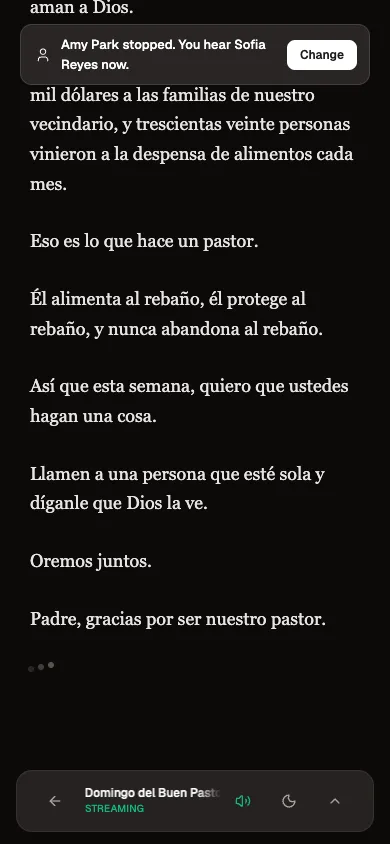
If it does not work: check the language and source name above the sermon text. If you cannot see them, scroll to the top. A short connection drop can cause a move too. The page can return to the same room when its connection comes back, unless you made another choice.
When the sermon ends
A Session ended box opens, with the sermon title if the church gave one. The sermon text stays on the page.
- Download opens the download page.
- Stay here closes the box. To go to the download page later, tap X at the top right.
The download page saves the text: the translation in your language and the original. If the church allows it, an Audio group also saves your language's AI voice and the original recording when they are available. The page shows the date until which the audio is kept. Back to church lobby returns to your church's page. If you open the sermon link after the sermon ended, choose your language if the list appears; then the download page opens.
If it does not work: ask church staff to use the saved sermon downloads. Guests do not need to create a church account for help.