Glossary and Bible
This page is for church staff who prepare names, church words, and Bible choices before a sermon. Add the words the speaker will say, then choose a Bible version for each language you use.
Add a name or church word
- Open Glossary under Organization. The Terminology Glossary page appears.
- Press Add Term. The Add New Term form opens.
- Choose Spoken Language. This is the language in which the speaker will say the word.
- Enter Term. Use a church name, a person's name, or a Bible word such as Hesed.
- Choose Translate To if you need a fixed translation. The Translation field appears.
- Enter Translation if you chose a target language.
- Press Add Term. Term added appears and the list updates.
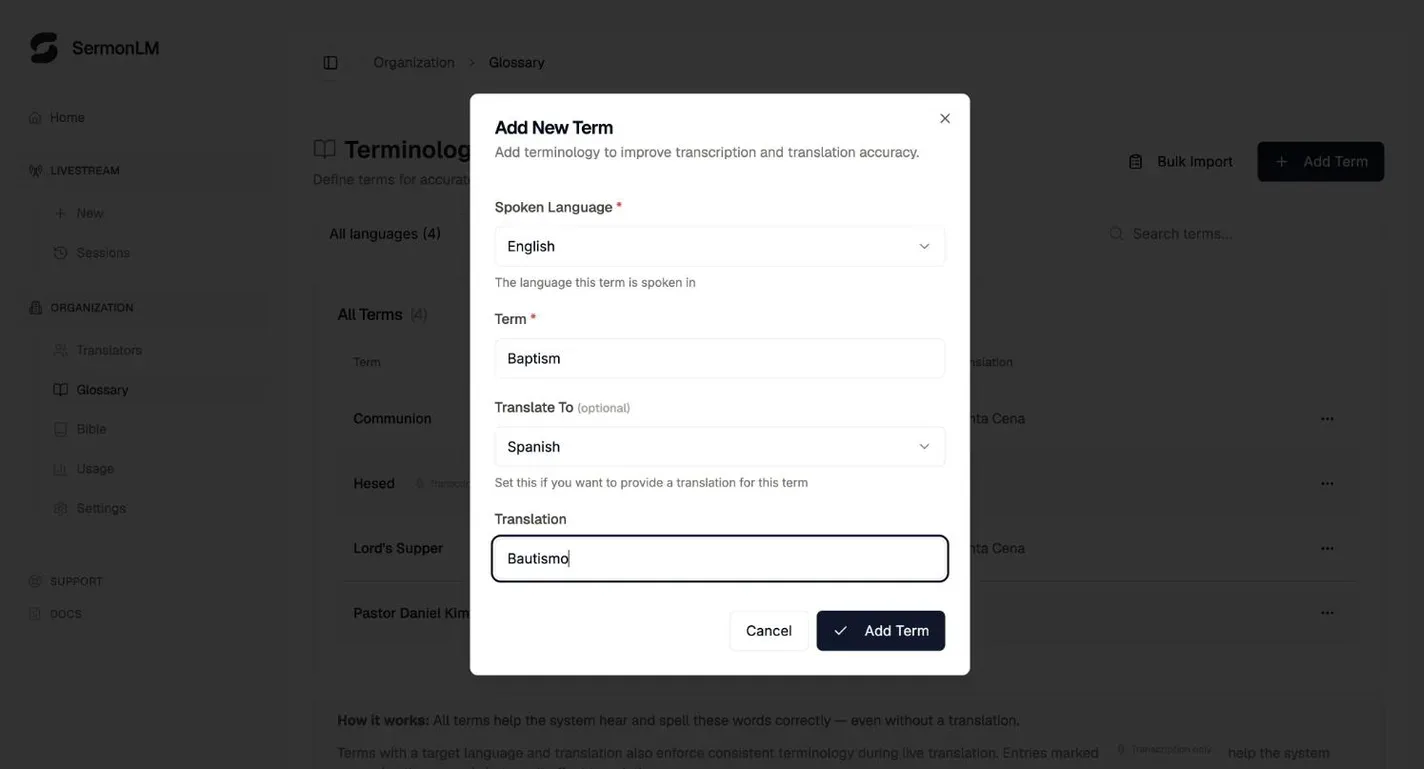
Leave Translate To on No translation to help the system hear and spell the term. To guide its translation too, set both a target language and a translation. Entries marked Transcription only help with hearing the word, without setting its translation.
The sermon's spoken language decides which source terms are used. Check Spoken Language even if the form already has a choice.
If it does not work: enter a term and check the language. Use Search terms... to find an existing entry. Its three-dot menu has Edit and Delete; press Update after changing it. The language button above the list (All languages) or a search can hide an entry from the list.
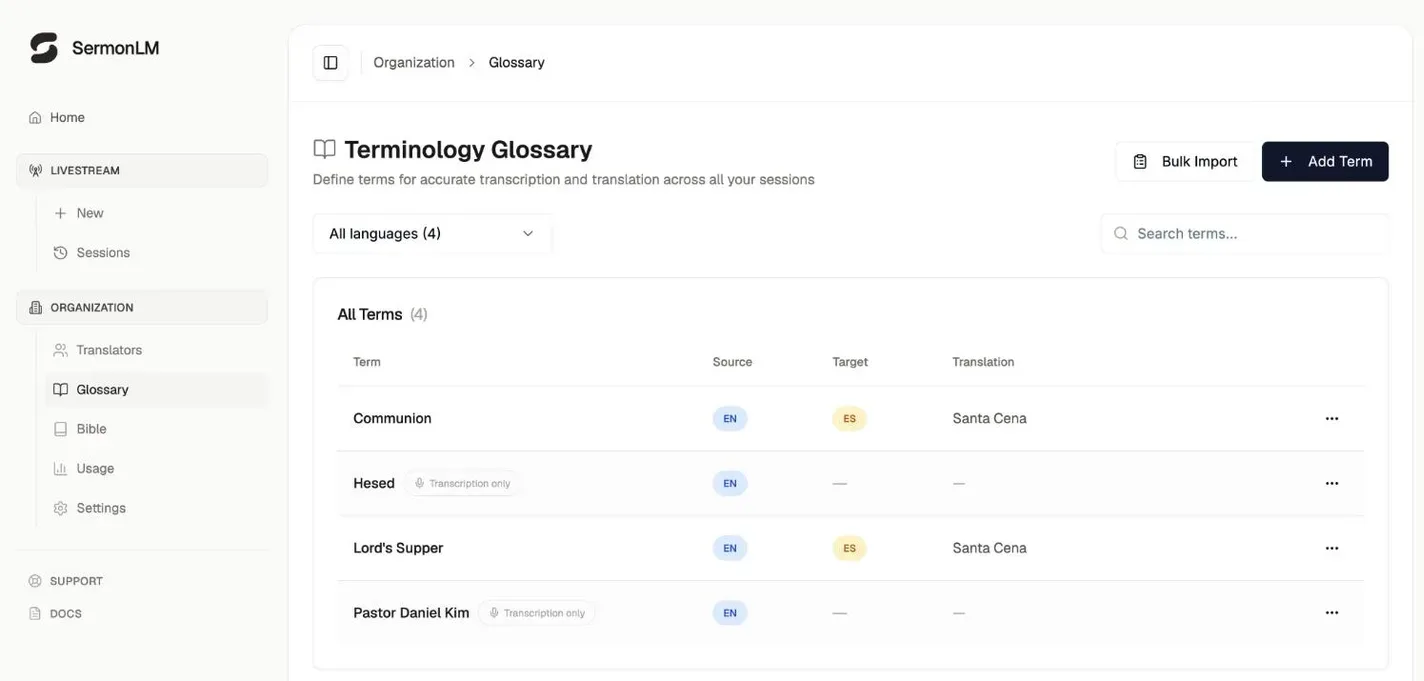
Add a list with Bulk Import
- Press Bulk Import. Bulk Import Terms opens.
- Choose Spoken Language for the whole list.
- Choose Translate To if the list includes translations.
- Paste one term per line. For a fixed translation, use
term -> translationorterm → translation. - Press Import. The message shows how many terms were imported and whether any were skipped.
- Check the imported terms in the list.
Add Term never replaces a saved term: if the term is already in the list, Term already exists appears, and you use Edit to change it. Import can replace the translation of a saved term with the same spoken and target languages. A line with no translation keeps the saved translation. For terms that need no fixed translation, import them separately with Translate To set to No translation. Check existing entries before you import. Keep a copy of the list until you have checked the result.
If it does not work: check the message and the terms already in the list before importing again. For translated terms, check that Translate To is set and each line has words on both sides of the arrow.
Check each language's Bible version
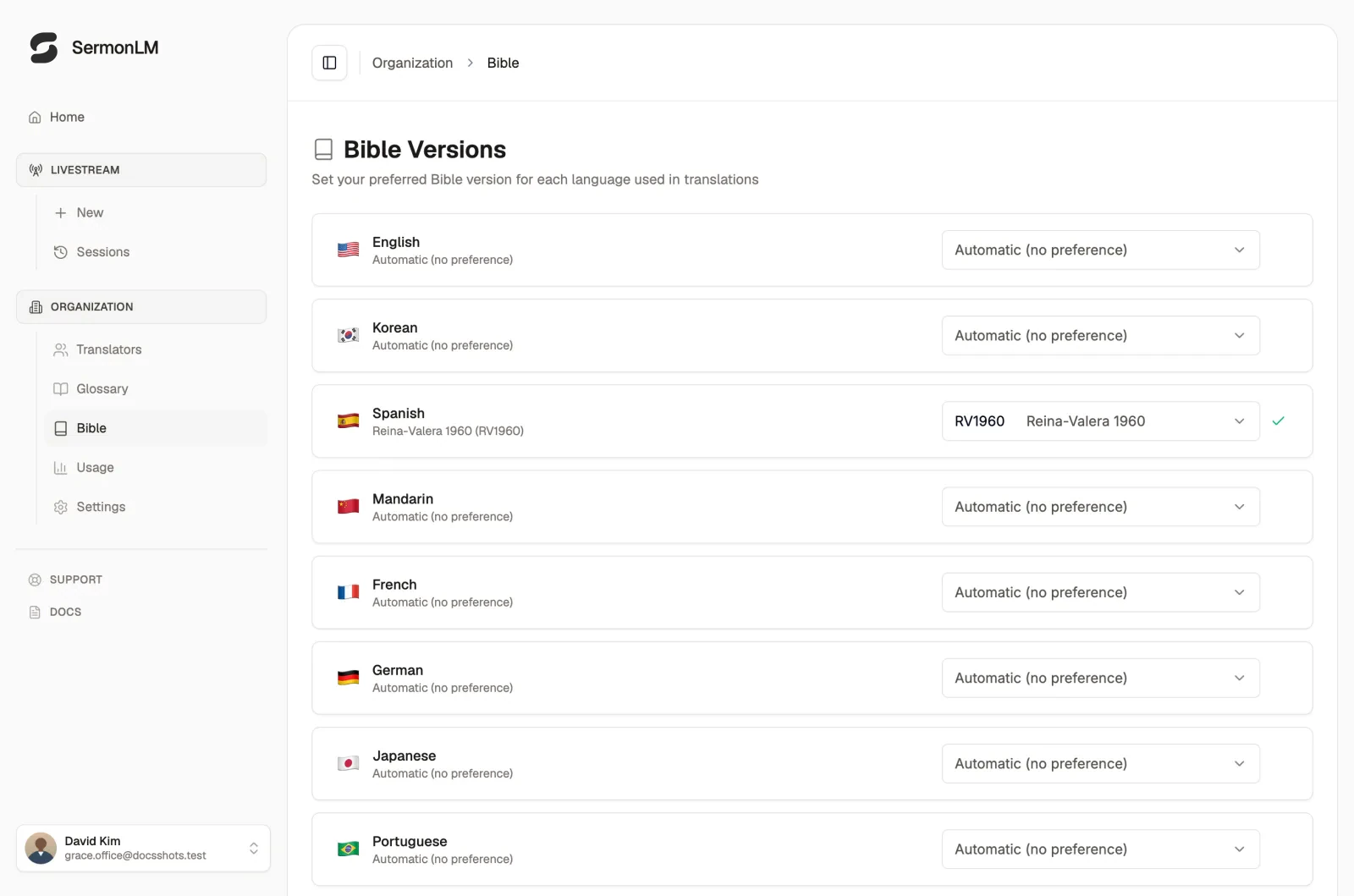
- Open Bible under Organization. The Bible Versions page appears.
- Find the language you use. Below its name, you see the saved Bible name and code, or Automatic (no preference).
- Open that language's version list.
- Choose the Bible version your church uses. The choice saves at once.
- Wait for Saved before leaving.
Each language has its own choice. Automatic (no preference) clears your saved choice for that language. The versions offered come from the app's available Bible list; a language without an available version has no card here.
These choices guide Bible quotations during translation.
Check the Bible for this sermon
- Open New Livestream.
- Choose Sermon language.
- Choose Translation language(s). A card appears for each selected guest language.
- Check Bible in each card.
- Choose another version there if this sermon needs it.
The setup card uses your saved Bible choice unless you choose a version for that sermon. That sermon choice does not change your saved preference on Bible Versions.
none available can mean there is no version for that language, or that the list has not loaded. Wait, then check the Bible Versions page (Bible in the sidebar). The language stays in the translation list.
If it does not work: read any load or save error. No Bible Versions Available means no versions are configured for the page. For a missing version, ask for help. Check Bible quotations in the sermon even after choosing a version.