Show a join screen in church
This page is for church staff who use a screen to help guests join the sermon. Show the church QR code and language list, then check the link with a phone.
The Church display shows your church name in the top-left corner, with its logo if set, and a QR code. In the center, it shows the time and date. While a sermon is live, the center shows the Sermon title, the speaker, and the Scripture passages from the sermon setup. It lists the translation languages of the church's active sermons, each in its own name. Guests scan the code to open your church lobby and choose a sermon on their phones. For the sermon's live words on a screen, use Captions on your livestream video.
Choose the display
- Press Church display beside your lobby link on the dashboard. The Church display window opens.
- Choose Light or Dark. The preview changes to that design. The preview also changes language every few seconds, as the church screen does.
- Press Waiting or Live to check both preview states.
- Press Open link. The display page opens in a new tab.
- Return to the window.
- Press Copy link. Link copied. appears.
Waiting and Live change only the window's preview. The display link uses the church's actual state. The selected Light or Dark design is part of the copied link.
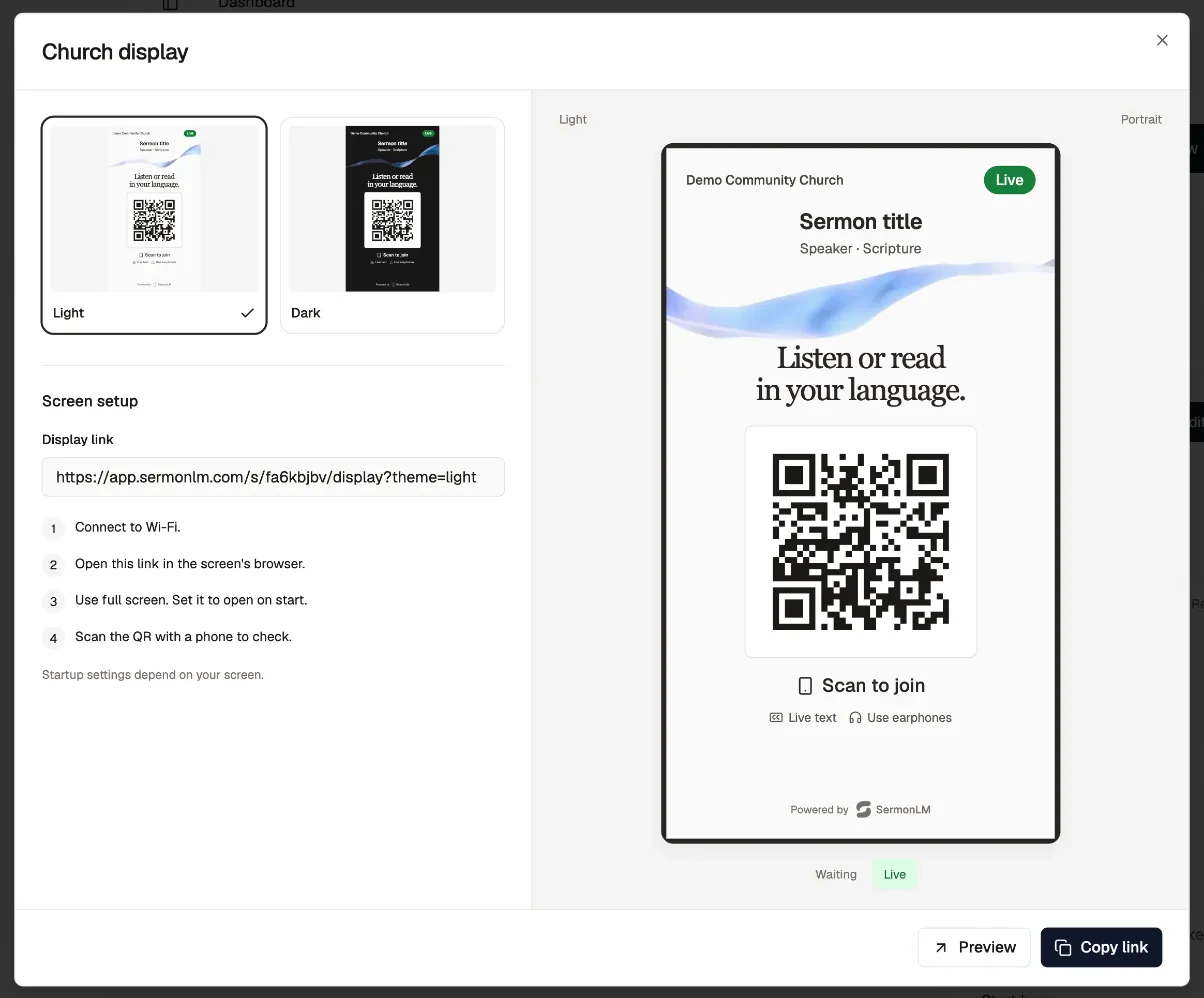
If it does not work: if you see Select and copy the link., select the Display link field and copy it yourself. If the preview cannot update, press Try again. Set up the church in Set up your church if you do not have a lobby link yet.
Open it on the church screen
- Connect the screen to Wi-Fi.
- Open the copied Display link in the screen's browser.
- Put the browser in full screen.
- Set the browser to open that link when the screen starts, if your screen supports this.
- Scan the QR code with a phone. Your church lobby should open.
- If a sermon is active, choose it on the phone to check the guest page. If not, check that your church lobby opens, and test the sermon page when the session starts.
Startup settings depend on your screen. The display checks for updates every 30 seconds. Live appears when a session's microphone is active and its connection is ready. During a pause, the display shows the time and date. If two sessions are live at the same time, the center shows the time and date. Reconnecting means the display cannot get a current update.
The words on the display take turns between languages: first the language of the screen's browser, then each language of the sermon, 6 seconds each. The church name, sermon title, speaker, and passage do not change. On a touch screen, tap a language name to keep that language for 30 seconds.
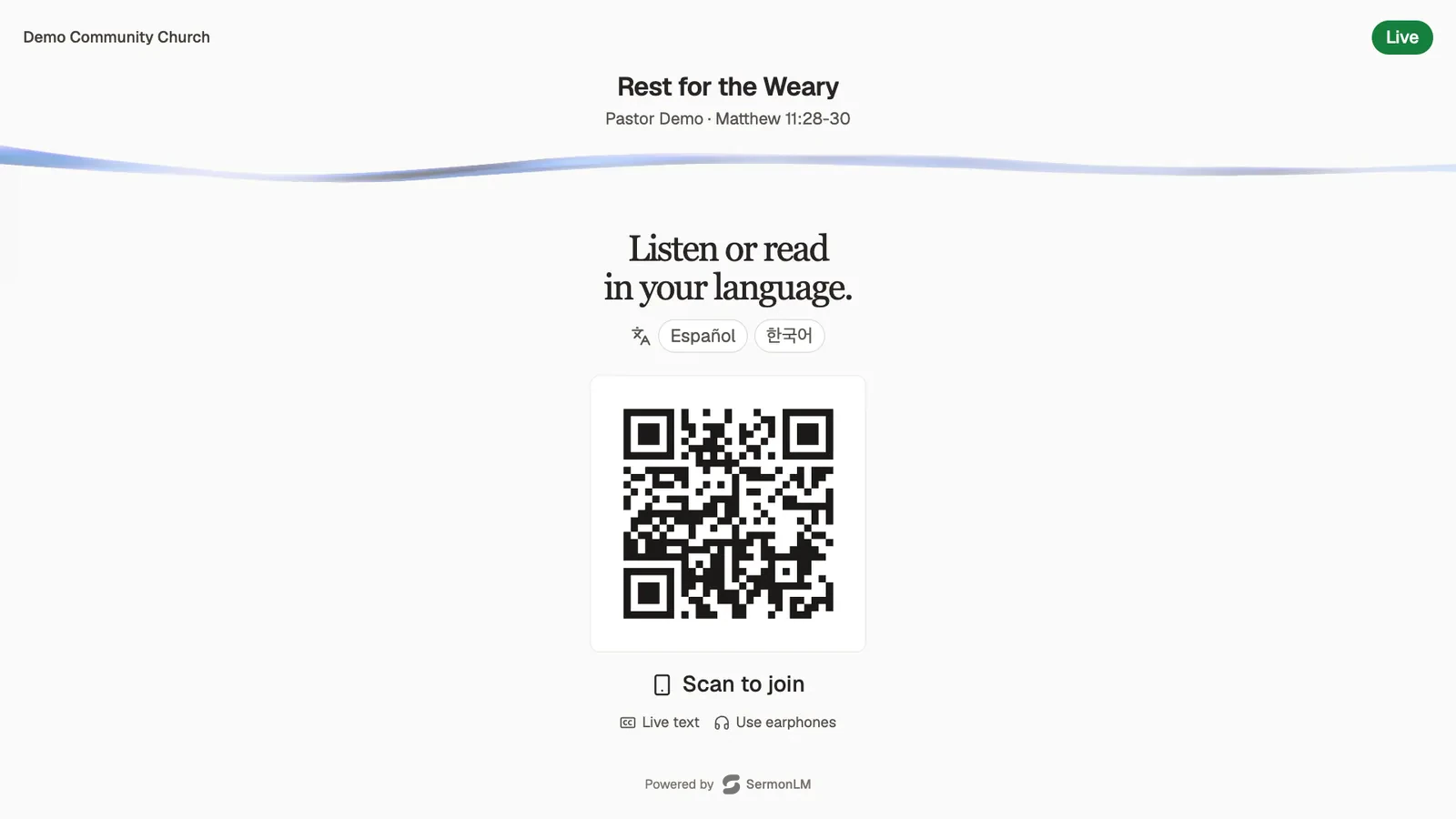
Use Settings under Organization to change the church name or logo. See For your guests for the phone steps after scanning.
If it does not work: Church not found means you must check the link. For Display unavailable, check the connection and press Try again. If the display shows Reconnecting, restore its connection before checking again. Test the QR code from where guests will stand.