Human interpreters
This page is for church staff who manage live translators. Add people to your church list, then use their room tabs to check sound, send messages, or end a room.
A live translator is a person who speaks the translation. Each person signs in with their own account and opens a room. Guests choose that room by language and name.
Send volunteers Get started as a translator for their own steps.
Human translator rooms come at no extra charge with a monthly plan, in any language. They do not count in your language limit. On pay as you go or the free credit, a translator cannot open a room: choose a plan first, see Plan and billing.
Add a translator
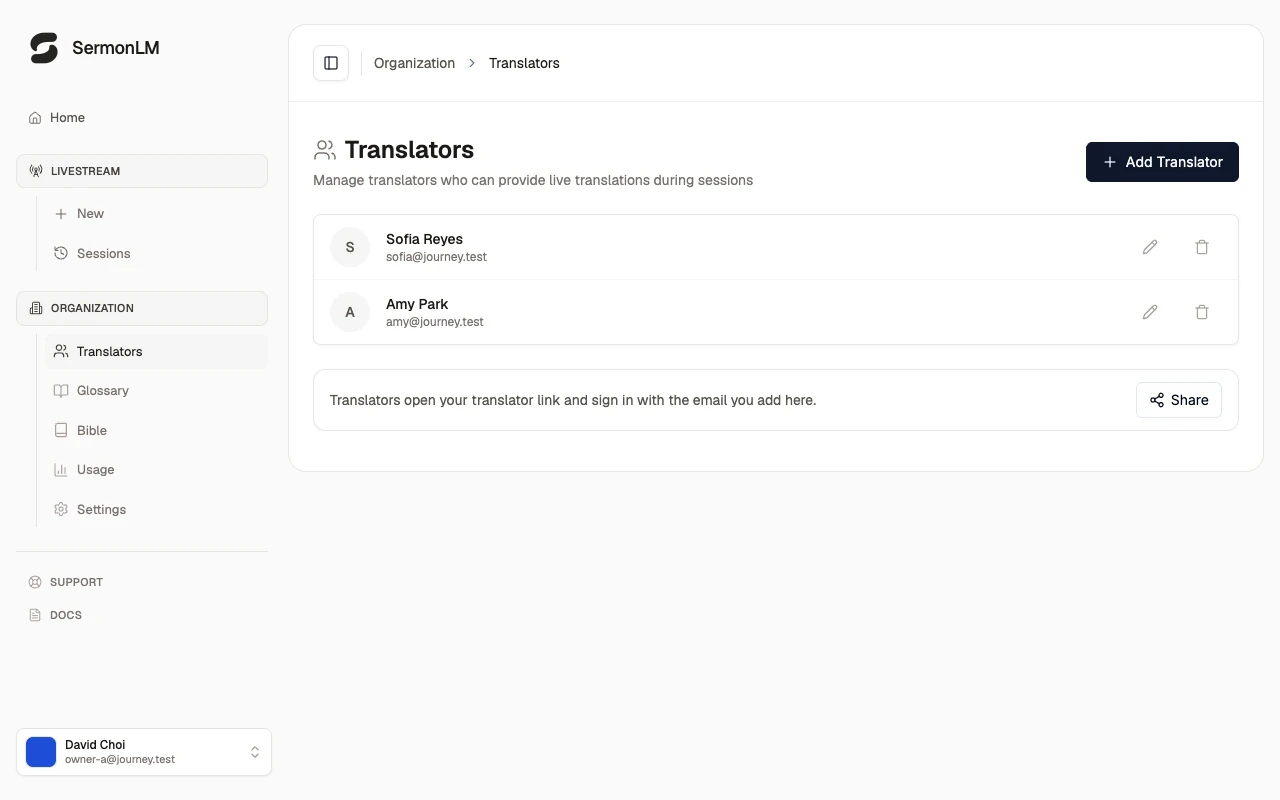
- Open Translators under Organization. Your church's translator list appears.
- Press Add Translator. The name and email form opens.
- Enter Name. Guests will see this name on the person's room.
- Enter Email. Use the address the translator will use to sign in.
- Press Add Translator in the form. The person appears in your list after the save succeeds.
- Press Share below the list. The translator share window opens.
- Press the copy icon beside the translator address. Its tooltip says Copy URL. The window also has a QR code and Download QR.
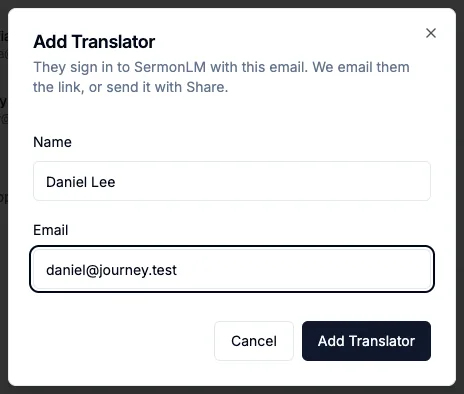
SermonLM also tries to email the person an invite when you add them. Its Open translator page button opens the translator sign-in page. If that email does not arrive, use Share. Access depends on the church list, the matching account email, and email verification. The shared link alone does not grant access.
One email has one role. An email that runs a church cannot also be added as a translator. Ask that person for a separate email.
To correct a name or an email, press the pencil icon beside the person, then Save Changes. A changed email counts as a new person: their open room ends, and the new address gets the invite.
If it does not work: read the save error and check the address. If the person was already added, check their existing row before adding them again. They must verify the account email before they can open a room.
Set up the sermon
- Open New Livestream. The sermon form appears.
- Choose the AI translation languages you want guests to have. Each has a language card.
- Choose AI Voice or Text Only in each card.
- Complete the start steps. The studio opens after Start Session.
You do not assign a translator in these cards. During the sermon, translators use Add room on their church page and choose the language they will speak. A translator whose room is still open sees Back to your Spanish room (with their language) there instead, so they can return without opening a new one. A room can use a language outside the sermon's AI translation list. Several translators can open rooms in the same language.
Guests see a room only after its translator presses Go live. A room marked Ready is open for checks and messages, but it is not yet a guest voice choice. A translator in Ready can press End room next to Go live if they picked the wrong language.
If it does not work: ask the translator which account email they used. Check your Translators list. If they see No sermon yet, check that you started the session for this church.
Check a room in the studio
- Open the room tab, such as Spanish · Amy. Its messages and room card appear.
- Check the state beside the translator's name. It shows Ready, Live, Muted, or Connection lost.
- Press Listen. The control changes to Listening when the room sound is playing on your computer. If it says Waiting for sound, the room is connected but quiet right now.
- Use the volume slider to set the sound level on your computer.
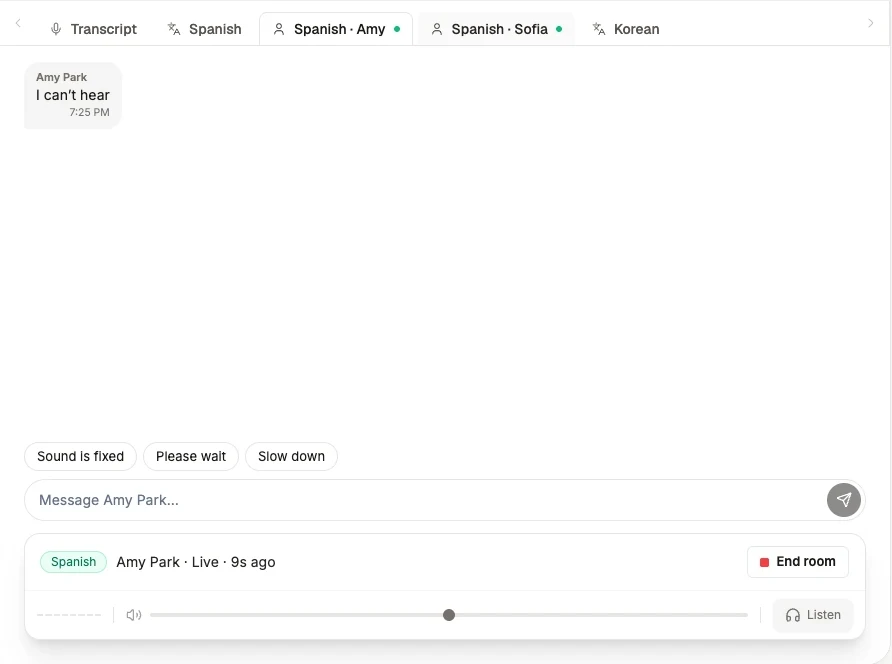
A green dot on a room tab marks a live room. When the translator presses Mute, the room card says Muted instead of Live, and guests in that room see Paused. Listening only shows that the sound plays on your computer. It does not prove a guest's phone plays it. The speaker icon beside your volume slider only mutes the sound on your computer. It does not mute the translator.
If you pause the sermon, translator rooms keep going. Their transcript shows Sermon paused, they still hear the church through Listen, and guests in their rooms still hear them.
If it does not work: press Tap to hear if the browser asks for a tap. Waiting for sound means the room is quiet: the translator may be muted (the card says Muted) or not speaking. Ask them in Messages. Check your computer volume too. If the translator cannot hear the speaker through Listen, check that the church's sound input is running.
Send a message
- Open the translator's room tab. The message thread is shown above the room card.
- Press Sound is fixed, Please wait, or Slow down. The chosen message appears in the thread after it is sent.
To write your own message, type in the message box, then press the arrow button, Send. The text box uses the translator's name. A number on another room tab marks unread messages.
Translators can message you while their room is Ready. Their Messages button gets a green dot for an unread church message. New church messages also appear briefly above their transcript. Messages do not make a sound alert.
If it does not work: read the error below the message box. A message can have up to 300 characters. Check the room is still open before sending again. Use a short message so the translator can read it while working.
End one room
- Press End room on that room's card. A confirmation names the translator and explains where guests will move.
- Press End room in the confirmation. The room ends and its microphone stops sending to guests.
Guests move to another live room in the same language. If there is none, they move to that language's AI voice or text. If nothing is available in the language, the language list opens. Ending a room does not remove the person from your translator list.
If it does not work: check the error and the current room list. Use the correct person's tab. To stop future access, remove the person from the church list.
Remove a translator's access
- Open Translators under Organization. The church list appears.
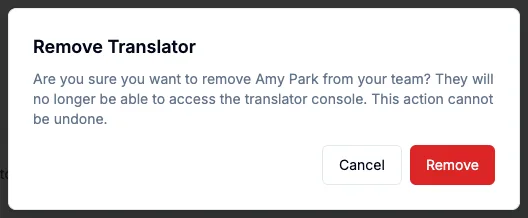
- Press the bin icon beside the person's name. Remove Translator opens.
- Press Remove. The person is removed from your church list and their open room is ended.
If it does not work: keep the page open and read any error. Removal is different from ending one room. Check the saved church list before telling the person their access changed.